Setup progress checklist
Where in the admin: Overview › Dashboard (
/), the Setup progress card at the top. Empty lists on Plans, Customers, Zones, Payments and Infrastructure show the same help.
What it does
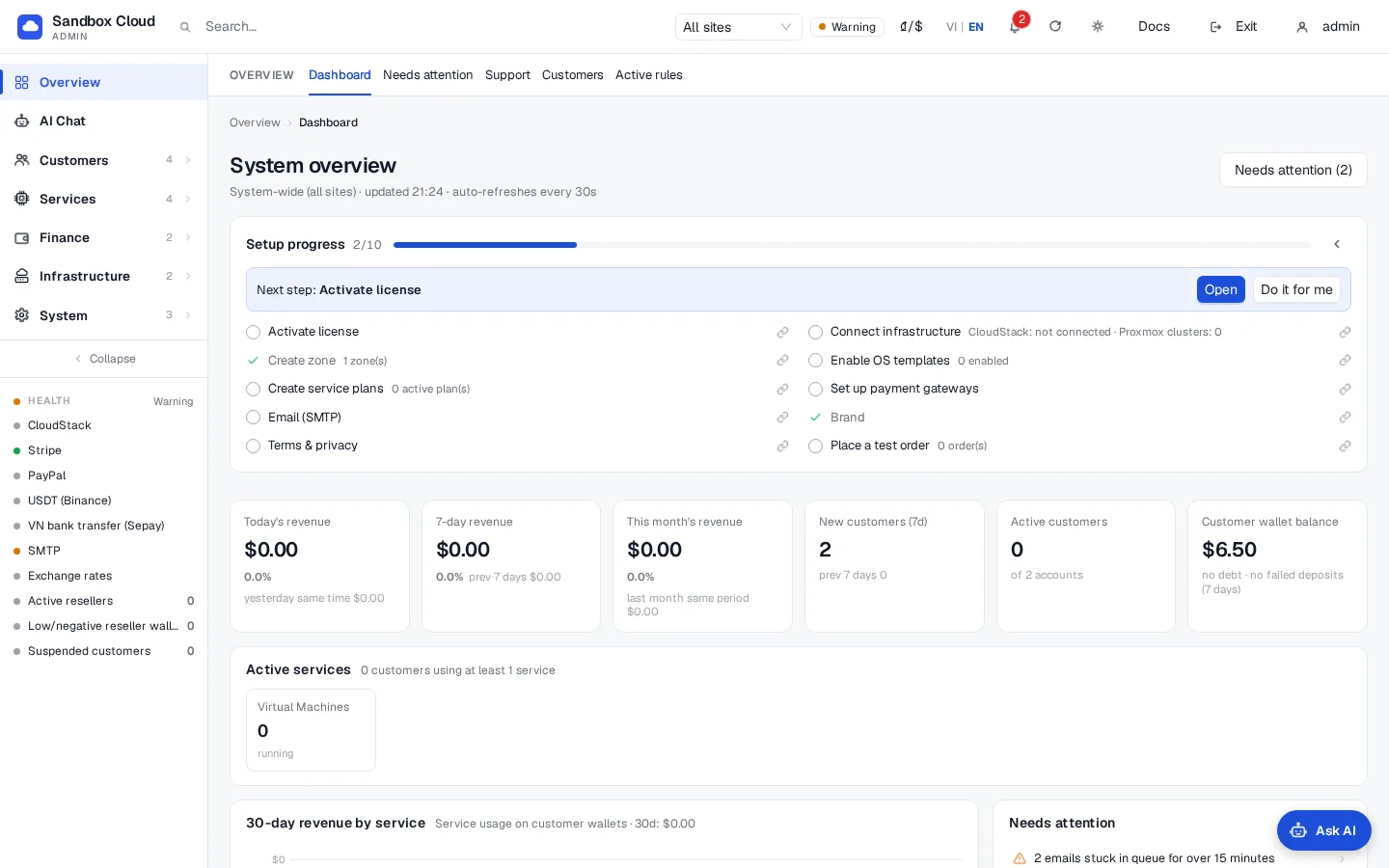
A new installation needs ten things before the first customer can order and pay. The Setup progress card checks them for you from the real configuration, shows how many are done, names the next step and links to the page where you do it. If you have an AI source connected, Do it for me opens the AI assistant with a ready question for that step. The assistant (and any AI client over MCP) can read the same list with the setup_checklist tool.
The ten steps
| # | Step | It counts as done when | Where you do it |
|---|---|---|---|
| 1 | License active | The license is activated for your domain | System › Admin › License & updates (/license). See License and purchase. |
| 2 | Connect an infrastructure source | CloudStack is connected, or at least one Proxmox VE cluster is added | Infrastructure › Cloud provider › Providers (/infra/providers). See CloudStack and Proxmox VE. |
| 3 | Create a zone | At least one zone exists | Infrastructure › Datacenter › Zone (/infra/zones). See Zones. |
| 4 | OS templates | At least one template is enabled | Services › Virtual Machines › Plans & pricing, tab Templates (/vm/catalog?tab=templates). See OS templates. |
| 5 | Create plans | At least one plan is enabled | Services › Virtual Machines › Plans & pricing (/vm/catalog). See Plans and pricing. |
| 6 | Set up payments | Stripe, PayPal, crypto or bank transfer is configured | Finance › Payment channels (/payments). See Payment channels. |
| 7 | Email (SMTP) | Outgoing email is configured | System › Settings › Email (/settings/email). See SMTP and e-mail templates. |
| 8 | Branding | A logo is uploaded, or the brand name is changed from the default | System › Settings › Brand (/settings/branding). See Branding. |
| 9 | Terms & privacy | At least one legal text is filled in | System › Settings › Legal (/settings/legal). See Legal pages. |
| 10 | Place a test order | At least one order exists | Place an order as a customer in the customer portal to check that everything works end to end; the card links to the Billing page (/billing). |
The card shows done/total (for example 6/10), a progress bar, the next step with Open and, when an AI source is connected, Do it for me. Click a step to jump to its page. Next to a step a small link opens the matching documentation page; some steps also show a detail such as "2 zone(s)".
Use it
- Open the Overview. The card sits at the top. Use the arrow to collapse it; the panel remembers your choice in your browser.
- Click Open to go to the page for the next step, or click Do it for me.
- With Do it for me the assistant opens with a request such as "Suggest a starter plan table from my offerings with a 40% margin, show me the preview before creating it." Answer its questions, then review and Confirm each card. See AI Chat in the admin.
- When all ten steps are done the card disappears.
Empty lists
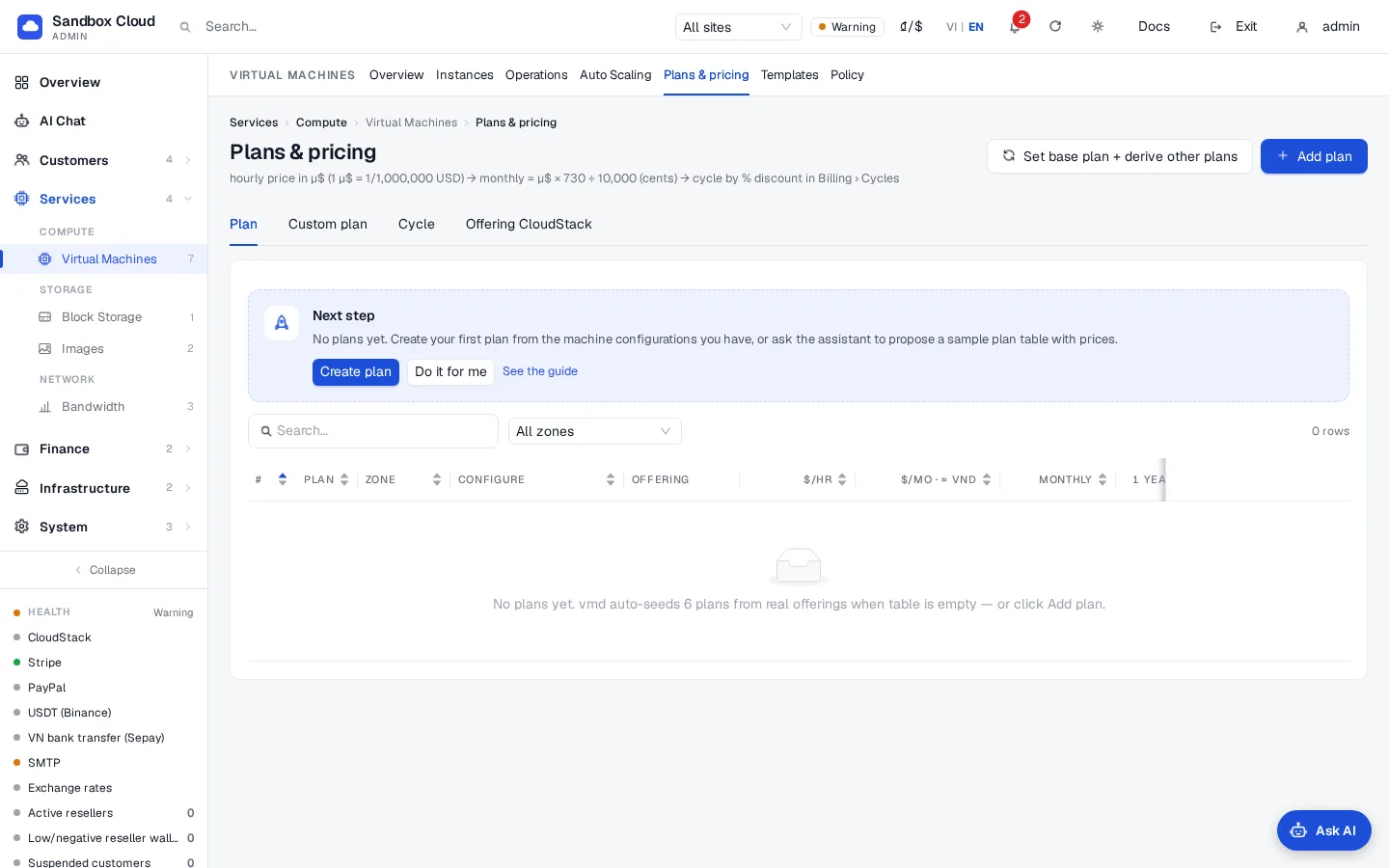
When Plans, Customers, Zones, Payments or Infrastructure is empty, the page shows a Next step block with an explanation, a button for the action, Do it for me and a link to the documentation, so you never meet a blank table.
Ask for it in your own words
You do not need the card. In AI Chat or any connected AI client you can ask:
text
Check my setup progress and take me through the open steps, one at a time.This is also the MCP prompt initial-setup. The assistant calls setup_checklist, explains why each open step matters, asks for the information it needs and uses the matching tool. Scopes needed: admin:read to read the list, plus the scope of the step you want done. See Example prompts.
Verify
- After you finish a step the card's count goes up the next time the Overview loads.
- In the assistant,
setup_checklistreturns the same numbers, withdone: trueon the finished step.
Limits & notes
- The checks look at what is saved, not whether it works. A configured gateway counts as done even if its test fails. Use the Test buttons on each page, and the
system_healthtool for problems. - The card is for administrators only.
- Do it for me needs an AI source connected under System › Settings › AI accounts; without one only Open is shown.
- The ten steps are the same for every installation; a step you do not plan to use (for example payments on a private cloud) still counts as open.
Troubleshooting
| Symptom | Cause | Fix |
|---|---|---|
| The card is missing | All ten steps are done, or the card could not be loaded | Reload the Overview. Ask setup_checklist in AI Chat to see the state. |
| A step stays open after you did it | The save did not complete, or the condition is not yet met (for example a template exists but is disabled) | Open the step's page and check the table above. |
| Branding stays open after changing the logo | Branding counts when a logo exists or the brand name differs from the default "NexCMP" | Upload a logo or set your own name. |
| Do it for me does nothing | No AI source connected, or the demo panel | Connect a source in AI accounts. |