Customer portal overview
Where in the portal:
https://<your-domain>/— customers sign in at/login. Administrators use/admin; the same login opens both when the account is an administrator.
The portal is what your customers use every day. It is branded with your name, logo and colours (Branding) and shows only the services you have turned on (Modules).
The dashboard
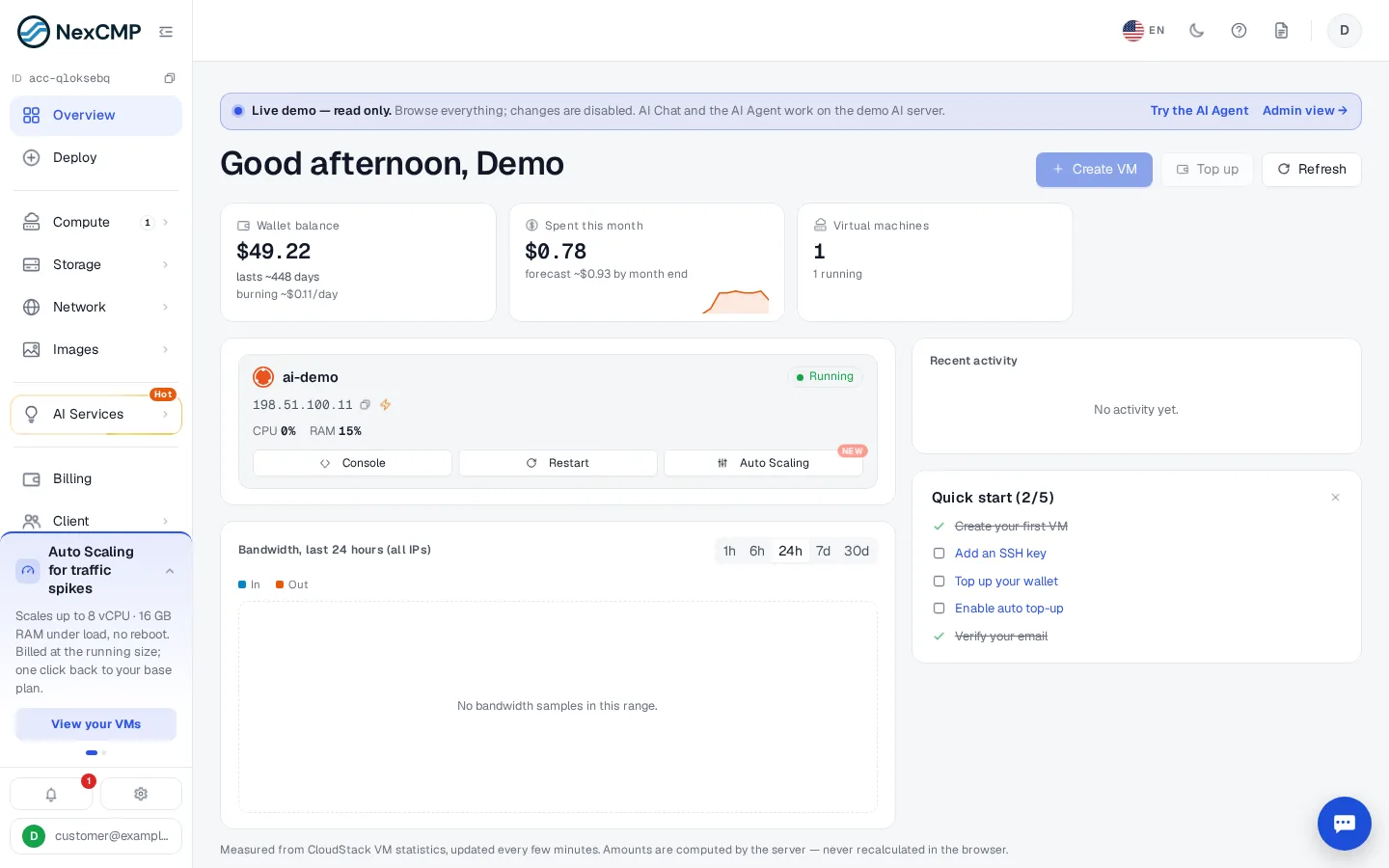
After sign-in the Dashboard shows:
| Block | Meaning |
|---|---|
| Wallet balance | Current credit and an estimate of how many days it lasts at the present burn rate |
| Spent this month | Charges so far and a forecast for month end |
| Virtual machines | Each VM with status, IP, CPU and RAM, and quick actions (Console, Restart) |
| Bandwidth | Inbound/outbound traffic for 1 h, 6 h, 24 h, 7 d, 30 d |
| Recent activity | Latest events on the account |
| Quick start | A checklist: create a VM, add an SSH key, top up, enable auto top-up, verify e-mail |
Navigation
The menu groups services by type. A service you disabled (or whose source is not connected) does not appear.
| Area | Page |
|---|---|
| Instances | Virtual machines and their detail pages |
| Deploy | Ordering — create a resource |
| Storage | Snapshots, backups and volumes when enabled — Snapshots |
| Billing | Wallet and top-ups, invoices, orders, quotas |
| Account | Profile, sign-in and security, preferences, auto top-up |
| Support | Chat widget and tickets — Support |
| API docs | /apidoc — API |
Account
Account has four tabs: Profile (name, e-mail, customer ID, delete-account request), Sign-in & security (password, passkeys, linked Google/GitHub), Preferences (language, display currency) and Auto top-up (Auto top-up).
A customer cannot delete the account directly: they press Request account deletion; after all virtual machines are deleted, an operator reviews the request (Customers › Deletion requests) and the customer can withdraw it while pending.
Language and currency
The portal is available in 16 languages and shows prices in a display currency chosen by language; see Currency and exchange rates. Customers can switch both in Preferences.
Customer quotas
Billing › Quotas shows how much of each resource (CPU, memory, storage, IP, VM) the customer may use, based on what they have paid — see Quotas.