SMTP and e-mail templates
Where in the admin: System › Settings › Email (
/settings/email) — tabs SMTP and Email templates. Delivery log: Overview › Support › Sent emails (/support/emails).
What it does
NexCMP sends e-mail for sign-up verification, password reset, "VM ready" (with the initial password), invoices, low balance, renewals, top-ups, support replies and more. All of them go through one SMTP account that you provide. Messages and templates exist in 16 languages; the customer's language is used.
Requirements
| Item | Requirement |
|---|---|
| SMTP server | Host, port and credentials of any provider (your own server, Brevo, Amazon SES, Mailgun, Google Workspace …) |
| Network | Outbound TCP from the NexCMP server to the SMTP host and port (587 STARTTLS, 465 TLS or 25) |
| Sender domain | A domain you control, with SPF and DKIM published for the provider and a DMARC record |
| Permission | The SMTP account must be allowed to send as the From address |
Deliverability
E-mails such as "VM ready" contain passwords. If the sender domain's SPF/DKIM/DMARC does not match the SMTP provider, they land in spam. The page reminds you of this.
Prepare the e-mail provider
- In your provider's panel add and verify your sending domain (for example
example.com). - Publish the SPF, DKIM and DMARC DNS records the provider shows.
- Create an SMTP user (or API-SMTP key) and note host, port, user name and password.
Connect in NexCMP
- Open System › Settings › Email, tab SMTP.
- Fill the form:
| Field | Example | Notes |
|---|---|---|
| Host | smtp.example.net | SMTP server |
| Port | 587 | |
| Security | STARTTLS (587) | Choose the mode your provider requires |
| Username | smtp-user | |
| Password | (hidden) | Write-only: the page shows only whether one is set |
| From email | no-reply@example.com | Must be authorised at the provider |
| From name | Example Cloud | Defaults to your brand name |
| Reply-To (optional) | support@example.com | Where customer replies go |
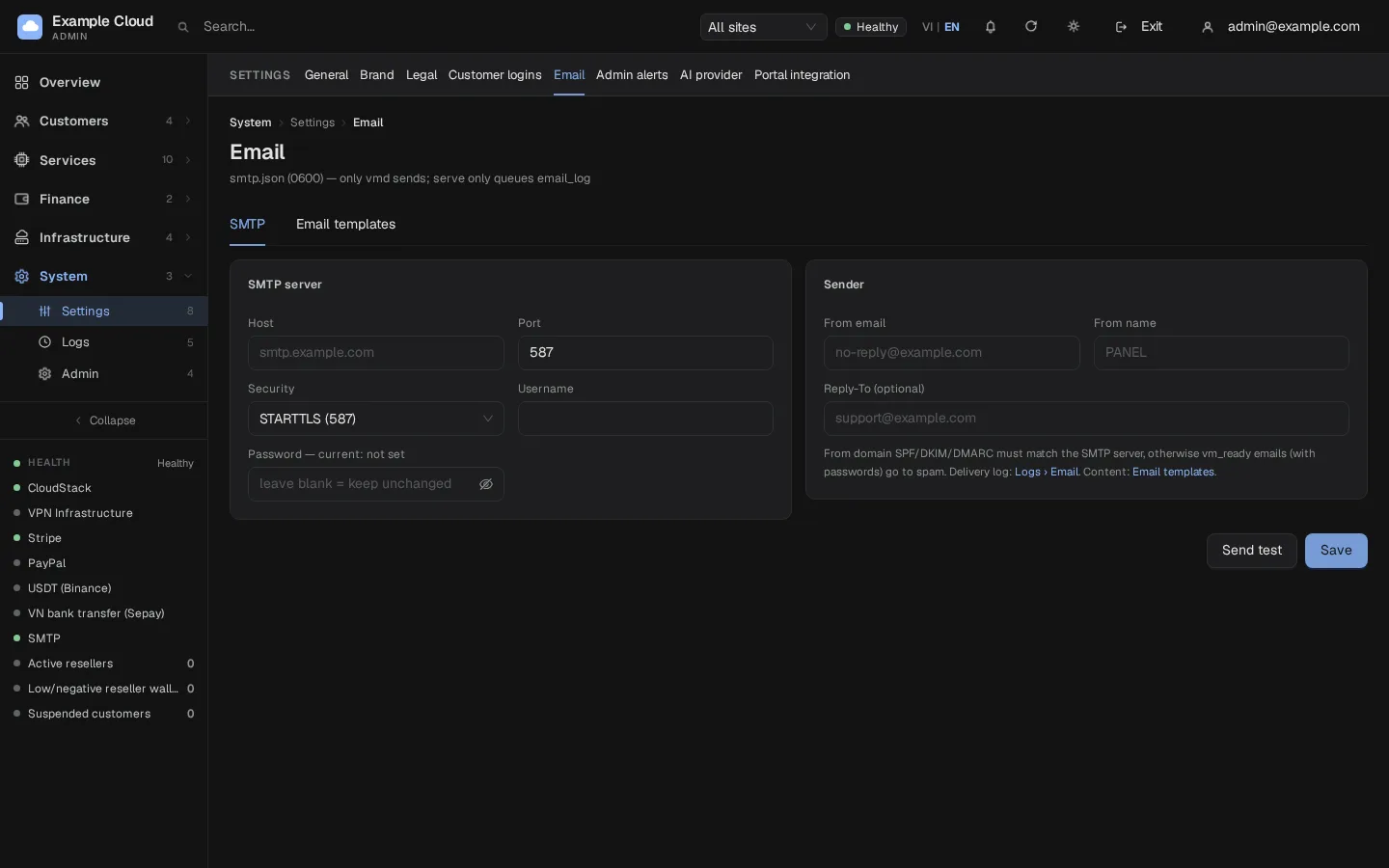
- Click Save, then Send test and enter your own address.
The settings are stored in an access-restricted file (smtp.json, mode 0600) and only the background worker nexcmp-vmd sends mail; the web service only queues it.
Verify
- The test message arrives in the inbox (check spam too). In the message source, confirm
dkim=passandspf=pass. - Open Support › Sent emails: each message has a status (queued, sent, failed) and the delivery result. Failed messages are retried up to 3 times.
- Register a test customer in the portal and confirm the verification e-mail arrives.
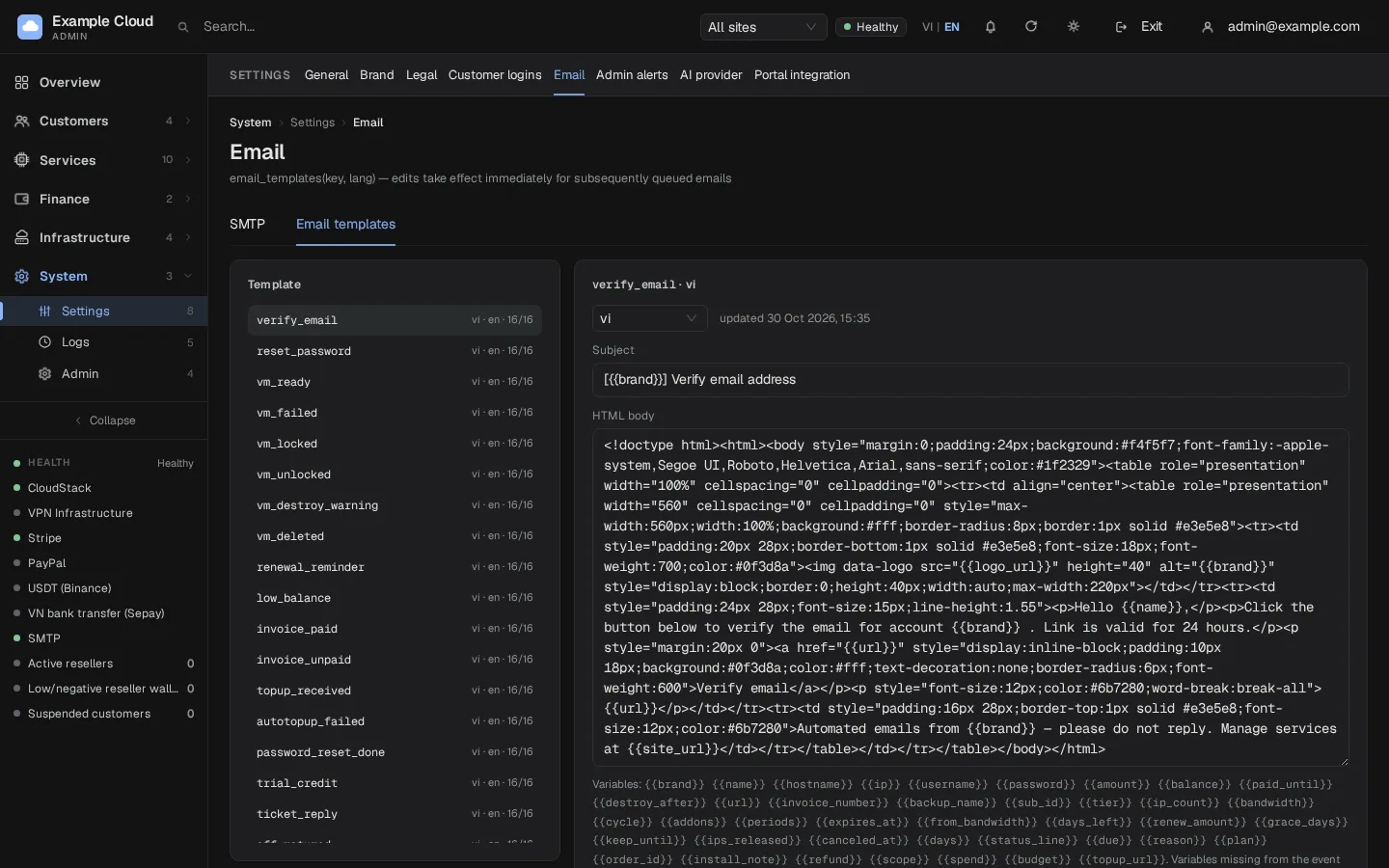
Edit e-mail templates
Tab Email templates lists every template by key, with the languages it exists in (for example verify_email, reset_password, vm_ready, invoice_paid, low_balance, topup_received, ticket_reply, scale_up …).
- Click a template and choose a language.
- Edit subject and body. Placeholders are filled in when a message is queued.
- Save. The change applies immediately to messages queued afterwards.
Limits and notes
- One SMTP account per installation. Resellers' customers receive e-mail through the same account unless the reseller is configured otherwise.
- Provider sending limits apply; NexCMP does not throttle beyond retrying.
- Without SMTP the panel works, but sign-up verification and password reset cannot be completed by customers.
Troubleshooting
| Symptom | Cause | Fix |
|---|---|---|
| Test e-mail never arrives | Wrong credentials, port blocked, sender not authorised | Check journalctl -u nexcmp-vmd for the SMTP error; try port 587 with STARTTLS; verify the From address at the provider. |
| Messages go to spam | SPF/DKIM/DMARC missing or misaligned | Publish the provider's records and send from that domain. |
| "failed" in Sent emails | Provider rejected the message | Open the row for the provider's response. |
| Password field looks empty after saving | By design (write-only) | The label shows "current: set" once a password is stored. |