Zones
Where in the admin: Infrastructure › Datacenter › Zone (
/infra/zones). A zone's detail page is/infra/zones/<id>.
What it does
A zone is the location a customer chooses when ordering: a country and city with a flag, plus the services sold there. It is a sales concept, separate from the zones, clusters and nodes of the platforms behind it. Behind a zone you attach infrastructure: a CloudStack zone, a Proxmox VE cluster, VPN nodes with IP ranges, an S3 backend.
Zone 1 is created by the setup wizard, with the display name and country you entered. Add more zones when you have infrastructure in more places, or to give VPN and S3 their own locations.
Requirements
| Item | Requirement |
|---|---|
| Permissions | An administrator account. A read-only staff role can look but not change. |
| Infrastructure | A zone sells nothing until something is attached to it (see "Which service sells where" below). |
| Depends on | CloudStack or Proxmox VE for VMs, VPN and proxy nodes for VPN, S3 for object storage. |
Prepare the infrastructure
Not required. A zone is a record inside NexCMP.
Connect in NexCMP
Create a zone
Open Infrastructure › Datacenter › Zone and click Add zone.
Fill in the form:
Field Example value Notes Country United StatesChooses the flag. City New YorkOptional. Name (Vietnamese), Name (English) New YorkThe name customers see in each language. Slug us-new-yorka-z, 0-9, hyphen, 2-32 characters. Filled in from country and city until you type your own. Visibility Public Public zones are visible to every customer; Hidden zones are only given by an administrator. Order 0Lower numbers first in lists. Services sold in this zone Virtual Machines (VM), VPN, Object Storage (S3) Tick at least one. Active On Off hides the zone from customers. Default off The zone preselected for customers who have not chosen. Exactly one zone is the default. 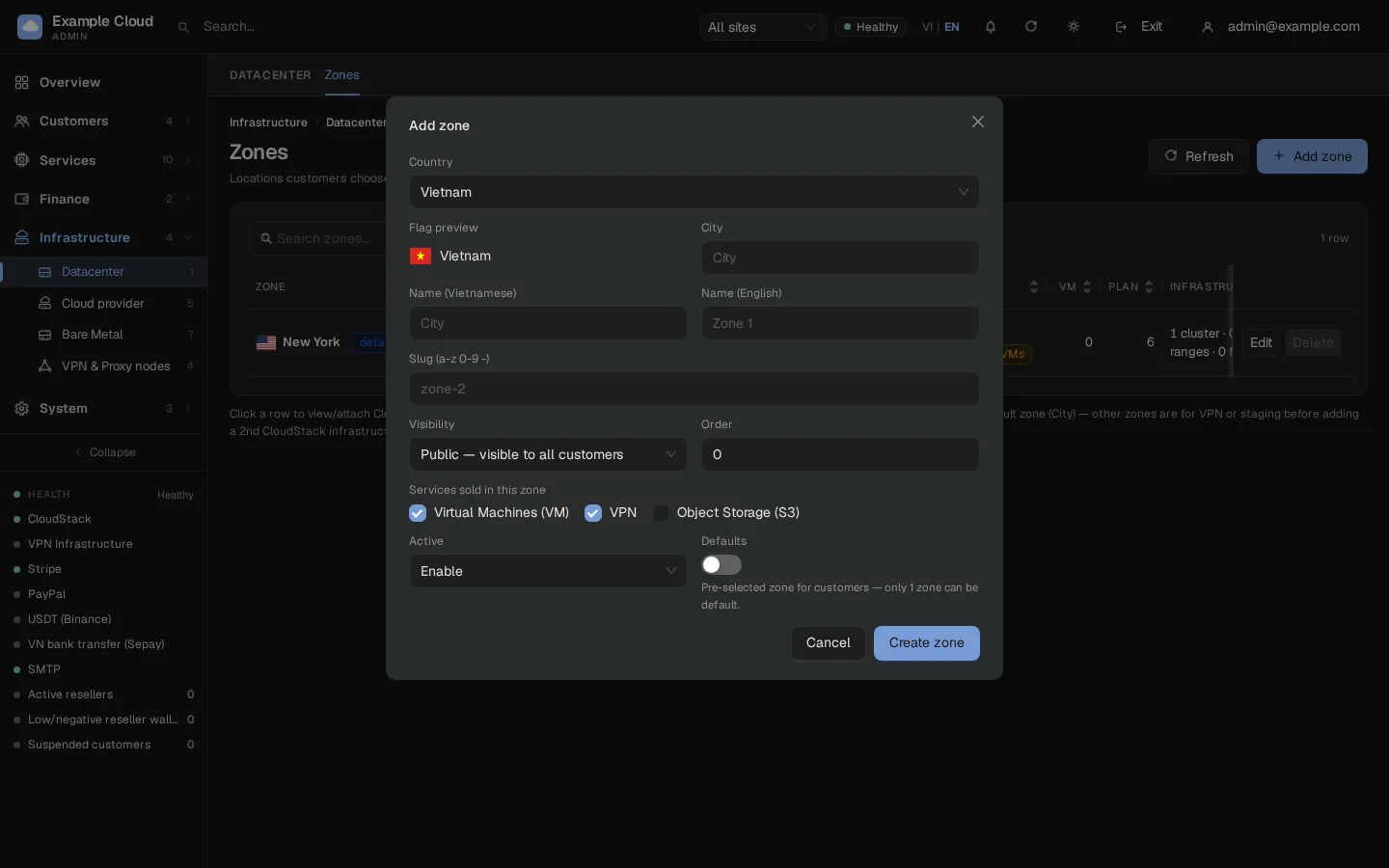
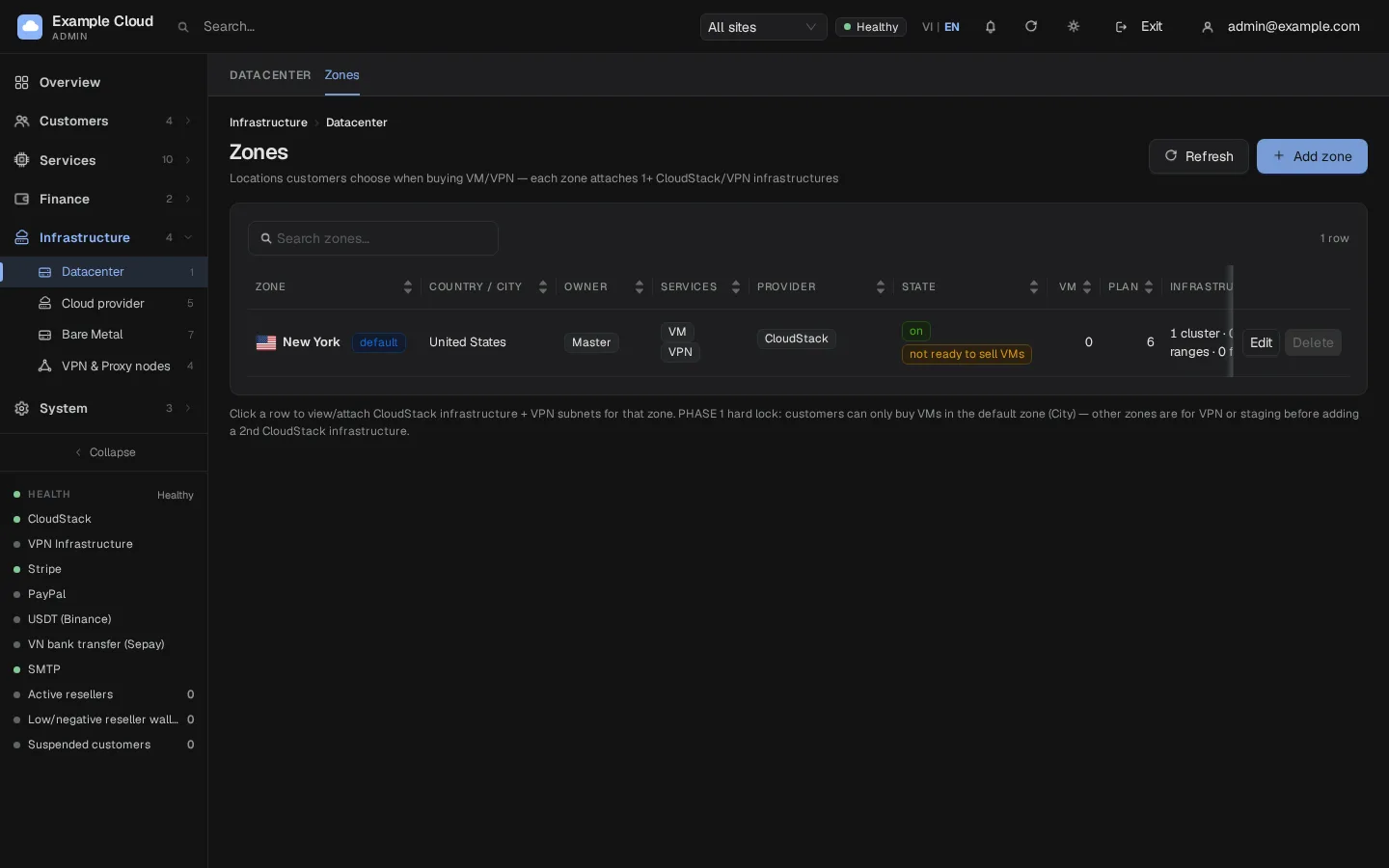
Click Create zone. The list shows the zone with its flag, owner, services, state and counts of VMs, plans and attached infrastructure.
Look at what is attached
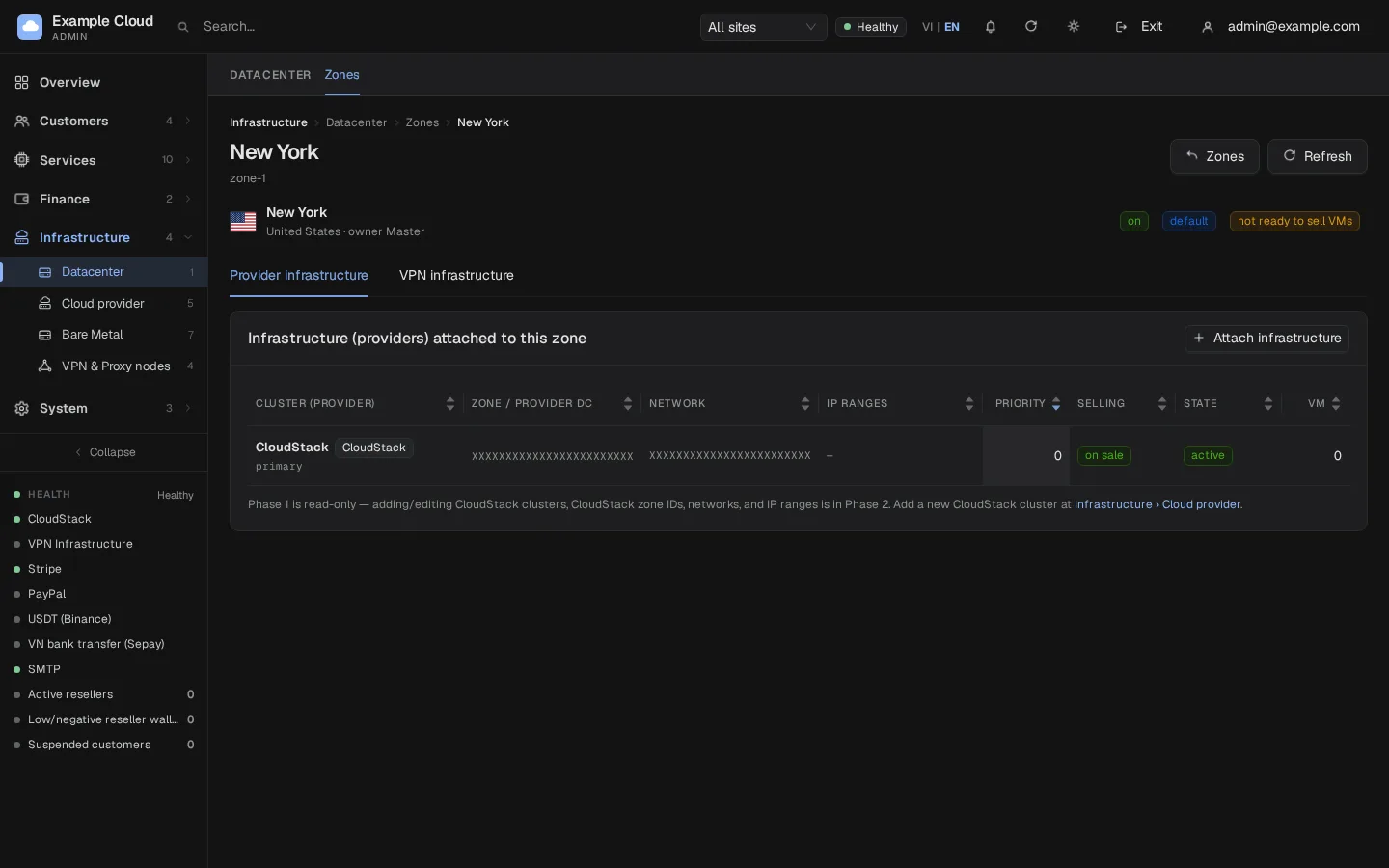
Click a row to open the zone. The tab Provider infrastructure lists each attached backend with its provider, kind (CloudStack or Proxmox VE), region, state and priority. The tab VPN infrastructure lists the VPN ranges and nodes of the zone and links to the VPN pool.
Which service sells where
| Service | How it gets into a zone |
|---|---|
| Virtual Machines on CloudStack | The wizard (or Infrastructure › Cloud provider › CloudStack) attaches CloudStack to zone 1. |
| Virtual Machines on Proxmox VE | On the cluster's Clusters tab, Attach cluster to zone. The cluster joins an existing zone, normally the one that sells through CloudStack. |
| VPN | A VPN node that reports its public IP ranges creates (or joins) a zone for its country and puts the ranges in the VPN pool. You can also assign the zone and node of a range under VPN IP pools. |
| IPv6 Proxy | A new IPv6 proxy node creates its zone in the off state. Turn the zone on here so customers can pick it. |
| Object Storage (S3) | Tick the S3 service on the zone, then attach the backend under Ceph S3 (RGW). |
When can a zone sell virtual machines?
A zone shows the tag not ready to sell VMs until it has at least one active, sellable backend and at least one visible plan and at least one ready template on that backend. The customer order form lists only zones that are ready.
Verify
- The zone appears in the list as On, with the right flag.
- Its detail page shows the backend or the VPN ranges you expect.
- For VMs: the tag not ready to sell VMs is gone. In the customer portal, start an order and check that the zone is offered.
Limits and notes
- In this NexCMP release customers order virtual machines in the default zone (zone 1). Other zones are used for VPN, IPv6 Proxy and Object Storage, or to prepare a location before it has infrastructure; the note under the zone list says the same.
- A zone can be deleted only when nothing is attached: no backends, VMs, plans or VPN ranges. The default zone cannot be deleted; make another zone the default first.
- Zones owned by a reseller can only be turned on or off and hidden or shown by you; their other fields are locked.
- The slug is part of internal references. Choose it once.
Troubleshooting
| Symptom | Cause | Fix |
|---|---|---|
| "Zone name is required" / "Select country" / "Select at least 1 service" | A required field is empty | Fill the name, choose the country and tick a service. |
| "Invalid slug (a-z 0-9 -, 2-32 chars)" | The slug has other characters or the wrong length | Use lowercase letters, digits and hyphens only. |
| Tag "not ready to sell VMs" | No active sellable backend, no plan or no ready template in that zone | Attach infrastructure, then add a plan and a template. See Plans and Templates. |
| Delete is disabled with "still attached" | The zone has backends, VMs, plans or VPN ranges | Remove or move them first. |
| Delete is disabled with "Default zone" | Zone is the default | Set another zone as default. |
| Customers do not see the zone | It is hidden, inactive, or has no service ticked | Set Visibility to Public, Active to On and tick the service. |
| An S3 zone is missing from the backend form | The S3 service is not ticked on the zone | Edit the zone and tick Object Storage (S3). |