Security
Where in the admin: System › Admin › Console security (
/account), Admin users (/users); System › Settings › Customer logins (/settings/login).
Admin console
Two-factor authentication (TOTP)
The console is reachable from the Internet, so turn on TOTP.
- Open System › Admin › Console security.
- Under Two-factor authentication (TOTP) click Start setup.
- Scan the QR code with Google Authenticator, Authy, 1Password or Bitwarden, then enter the 6-digit code.
Allowed console IP ranges
Under Allowed console IP ranges enter one IP or CIDR (IPv4 or IPv6) per line. Empty means anywhere. Outside the range both sign-in and the admin API are blocked.
Do not lock yourself out
The page shows your current IP and requires that the new list includes it. Use + Add my IP. If you are locked out anyway, use the emergency access from the server.
Change password
Fill Current password, New password and Confirm new password. Use a long, unique password (12 characters or more; the setup wizard enforces 12 for the first administrator).
Administrator accounts and roles
Open System › Admin › Admin users and use + Create account.
| Role | Access |
|---|---|
admin | Full access to the admin API |
staff | Read-only across the whole system |
user | Read-only view of one customer's resources |
The root account is the one created in the setup wizard. Row actions: Edit, Reset PW, Key, Delete. Passwords are stored as salted hashes; changing or locking an account ends its sessions at once.
Customer sign-in
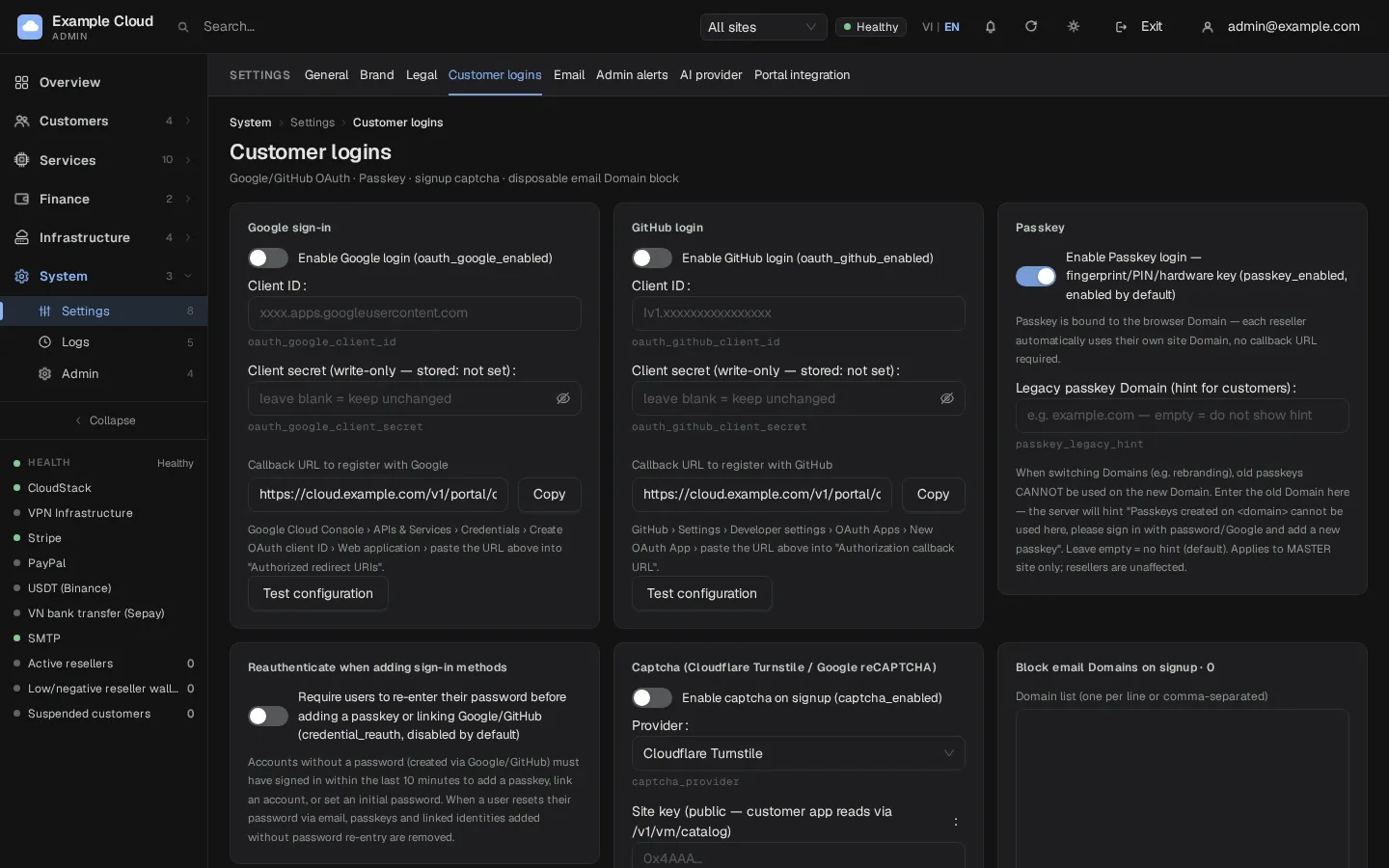
Open System › Settings › Customer logins.
| Setting | What it does |
|---|---|
| Google sign-in | Enable, then enter the OAuth client ID and secret. Copy the Callback URL shown on the page into Google Cloud Console › APIs & Services › Credentials › OAuth client ID › Authorized redirect URIs. Use Test configuration. |
| GitHub login | Same, with GitHub › Settings › Developer settings › OAuth Apps › Authorization callback URL |
| Passkey | Fingerprint, PIN or hardware key login; on by default. Passkeys are bound to the domain; each reseller domain works on its own. Enter an old domain in Legacy passkey Domain after a rebrand so customers get a helpful hint |
| Reauthenticate when adding sign-in methods | Ask for the password again before adding a passkey or linking Google/GitHub (off by default) |
| Captcha | Cloudflare Turnstile or Google reCAPTCHA on sign-up: enable, choose the provider, enter the site key and secret key |
| Block e-mail domains | One domain per line (max 2000). Matching addresses are rejected on sign-up with email_domain_blocked |
Built-in policies
| Policy | Value |
|---|---|
| Customer password | At least 10 characters, letters and digits |
| Customer session | 30 days; "login as customer" sessions last 1 hour |
| E-mail verification | Required before creating a VM when require e-mail verified is on in the sales settings |
| Anti-carding | Accounts with less than the minimum top-up can create only a limited number of VMs |
Server hardening
- Port 3000 is closed after setup and TLS; see Installation.
- The service runs as the unprivileged
nexcmpuser with a restricted systemd sandbox. - API keys, payment credentials and SMTP passwords are stored encrypted; the master key is in
/var/lib/nexcmp/secrets— protect backups. - Releases are verified with SHA-256 and an Ed25519 signature before installation.