Admin API keys
Where in the admin: System › Settings › API & AI agents (
/agent/keys), tab API keys. The same page has the tabs Connect an AI, Connected apps and Activity.
What it does
An admin API key (prefix ak_) lets an AI client or a script manage your panel with exactly the permissions you give it. It works on the admin API under /v1/admin/ and on the admin MCP endpoint /mcp/admin. It does not work anywhere else.
Not the same as customer keys
Customers create keys that start with vk_ in the customer portal (API keys and scopes). Those only reach the customer API and /mcp. An ak_ key is refused on the customer API, and a vk_ key is refused on the admin API.
Requirements
| Item | Requirement |
|---|---|
| Role | You must be signed in to the admin. Keys cannot create other keys. |
| Demo | On a demo panel the page is read-only: no key can be created or revoked. |
| Reachability | The client must reach https://cloud.example.com/mcp/admin or /v1/admin/... on your panel (check your firewall if you use IP restrictions). |
Create a key
Open System › Settings › API & AI agents and stay on the tab API keys.
Click Create new key.
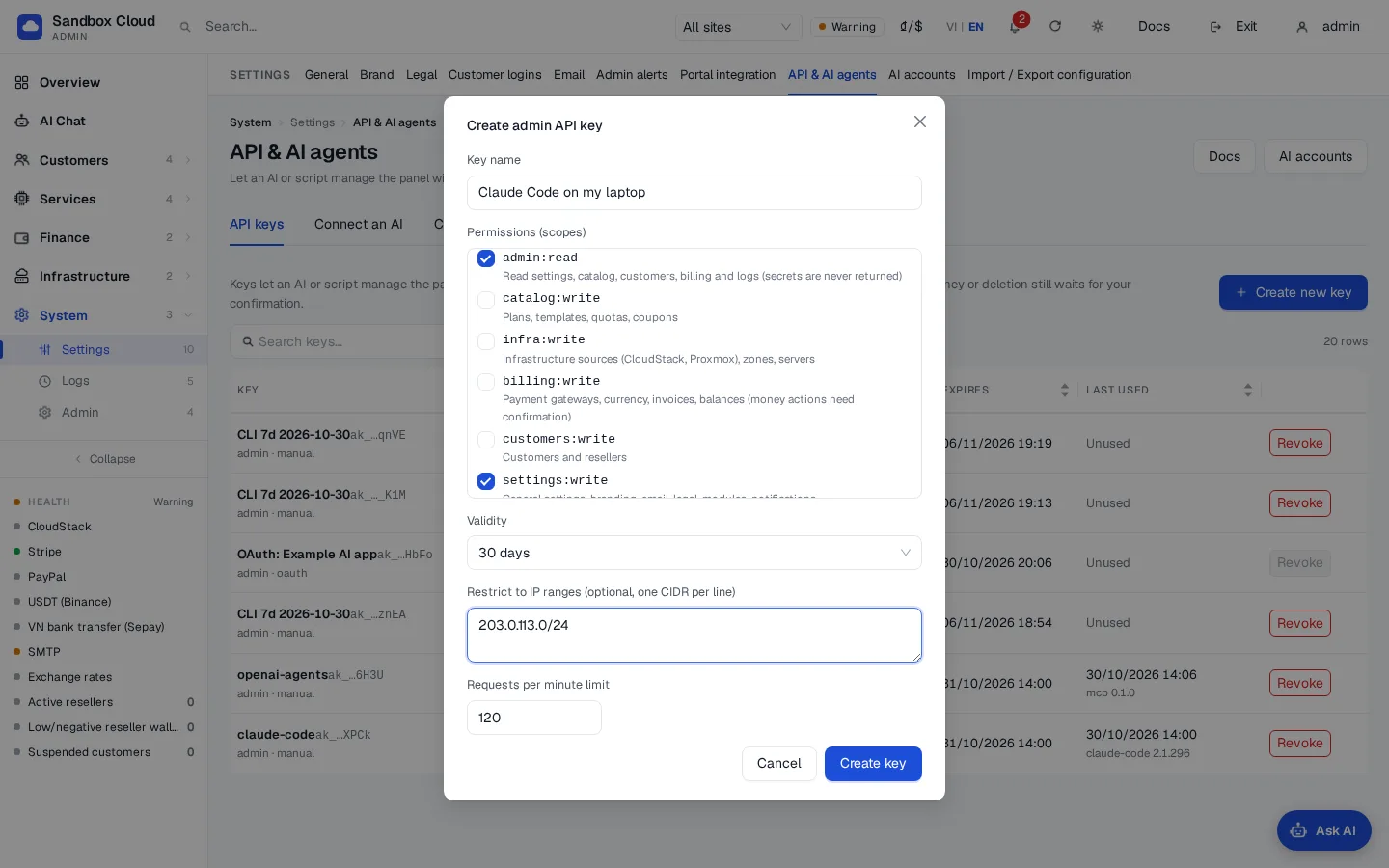
Fill in the form:
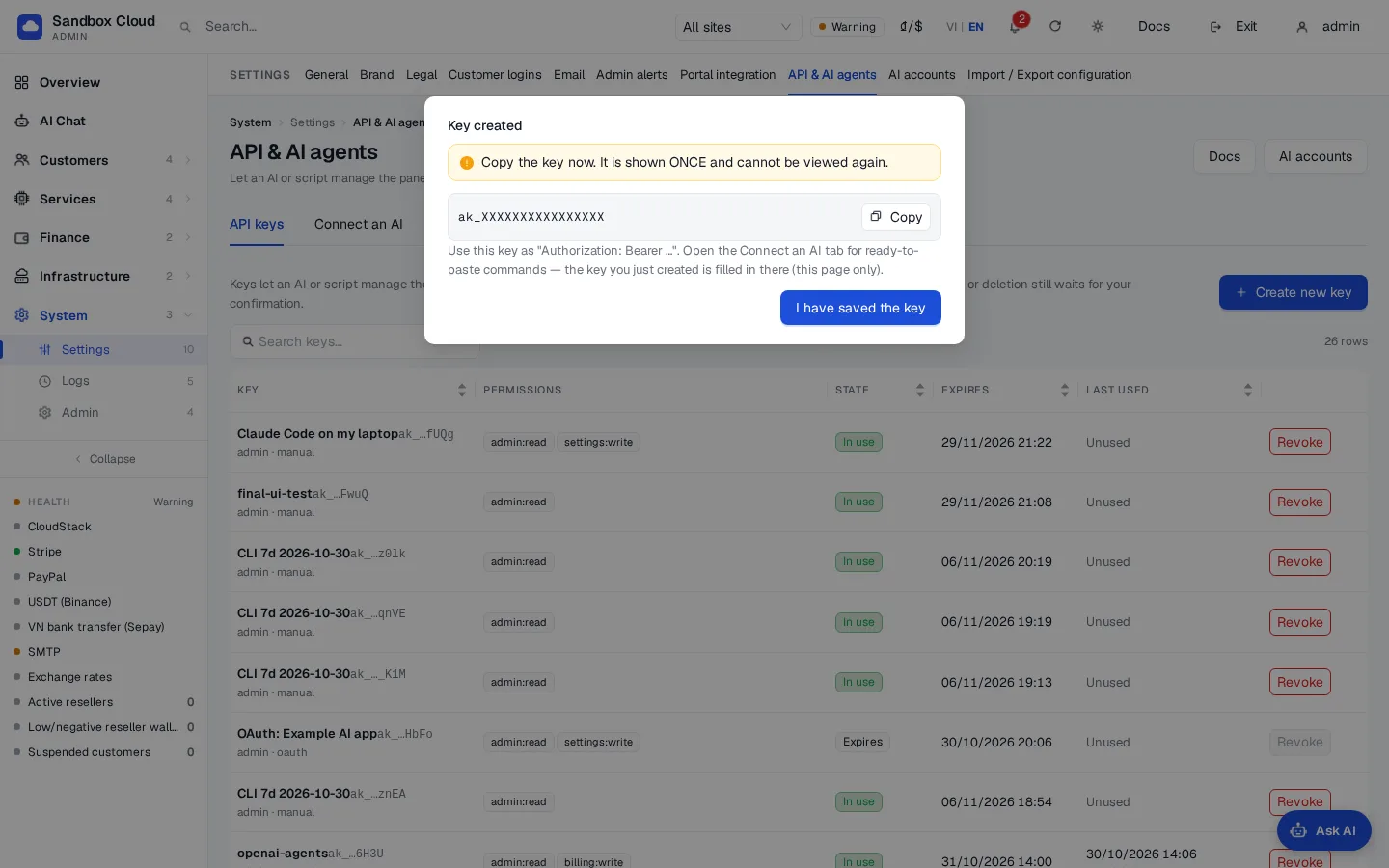
Field Rules Name Up to 60 characters, for example "Claude Code on my laptop". Scopes Tick at least one. See Scopes. Start with admin:readonly.Expiry 1, 7, 30, 60 or 90 days. Default 30. Maximum 90. A key without an expiry cannot be created. IP ranges (optional) One IPv4 or IPv6 address or CIDR per line, for example 203.0.113.0/24or2001:db8::/48. At most 32. Leave empty to allow any IP.Calls per minute 1 to 6000. Default 120. Click Create key. A box shows the key once, for example
ak_XXXX. Copy it now: NexCMP stores only a hash and can never show it again.Click I have saved the key. Open the Connect an AI tab to get ready-to-paste commands that already contain the key you just made (only on this page, until you reload it).
Scopes
A key can only use the tools and endpoints its scopes allow. Write scopes do not include read access: a key that should read and write needs admin:read as well.
| Scope | What it allows |
|---|---|
admin:read | Read settings, catalog, customers, billing and logs. Secrets are never returned. |
catalog:write | Plans, OS templates, quotas, discount codes. |
infra:write | Infrastructure sources (CloudStack, Proxmox), zones, servers. |
billing:write | Payment gateways, currency, invoices, balances. Money actions need confirmation. |
customers:write | Customers and resellers. |
settings:write | General settings, branding, email, legal pages, modules, notifications. |
ai:write | The AI provider and AI features. |
secrets:write | Write passwords and API keys. They can be set but never read back. |
Setting a secret needs two scopes
Any call that carries a password, API key or token value (an SMTP password, a payment key, a Telegram bot token, an AI provider key, CloudStack or Proxmox credentials) needs secrets:write and the scope of the area (for example settings:write for SMTP). If you would rather type secrets yourself, leave secrets:write off and enter them in the admin.
Revoke a key
- Find the key in the table (status Active, Expired or Revoked; Last used shows the time and the client).
- Click Revoke and confirm.
The key stops working at once. Revoking is permanent; create a new key if you need one again.
What a key can never do
A key can never reach these areas, whatever its scopes. They need you signed in to the admin.
- Create or change administrator users, 2FA and sign-in security, admin sessions, and the admin API tokens.
- Create, list or revoke admin keys, OAuth connections and AI accounts, or use the AI Console.
- Back up or restore the panel, update it, or change its license.
- Log in as a customer or a reseller, open a customer's console, read VM credentials or kubeconfig, set SSH keys, or send or reset passwords.
- Change network and routing modules (BGP, FRR, RTBH, XDP, interfaces, static and policy routes, NAT) or external agents and portal integration. These are read-only.
- Change settings such as
demo_*,admin_*, host lists, passkey, re-authentication and captcha secrets.
Anything not covered by a rule is closed by default for writes, and readable with admin:read for reads.
Actions that need your confirmation
These succeed only after you approve a preview (see Two-step confirmation):
- Changing a customer balance or a reseller wallet, paying out money, billing records, the exchange rate.
- Changing prices (plan prices, bulk plan creation, image and storage pricing) and creating discount or money codes.
- Saving payment gateway credentials or the CloudStack connection.
- Deleting anything, blocking or deleting a customer, changing a customer's limits, suspending or closing a reseller.
- Acting on customer servers, or creating a paid server for a customer.
- Changing site-wide switches, sign-in security settings or payment settings through general settings.
Two-step confirmation
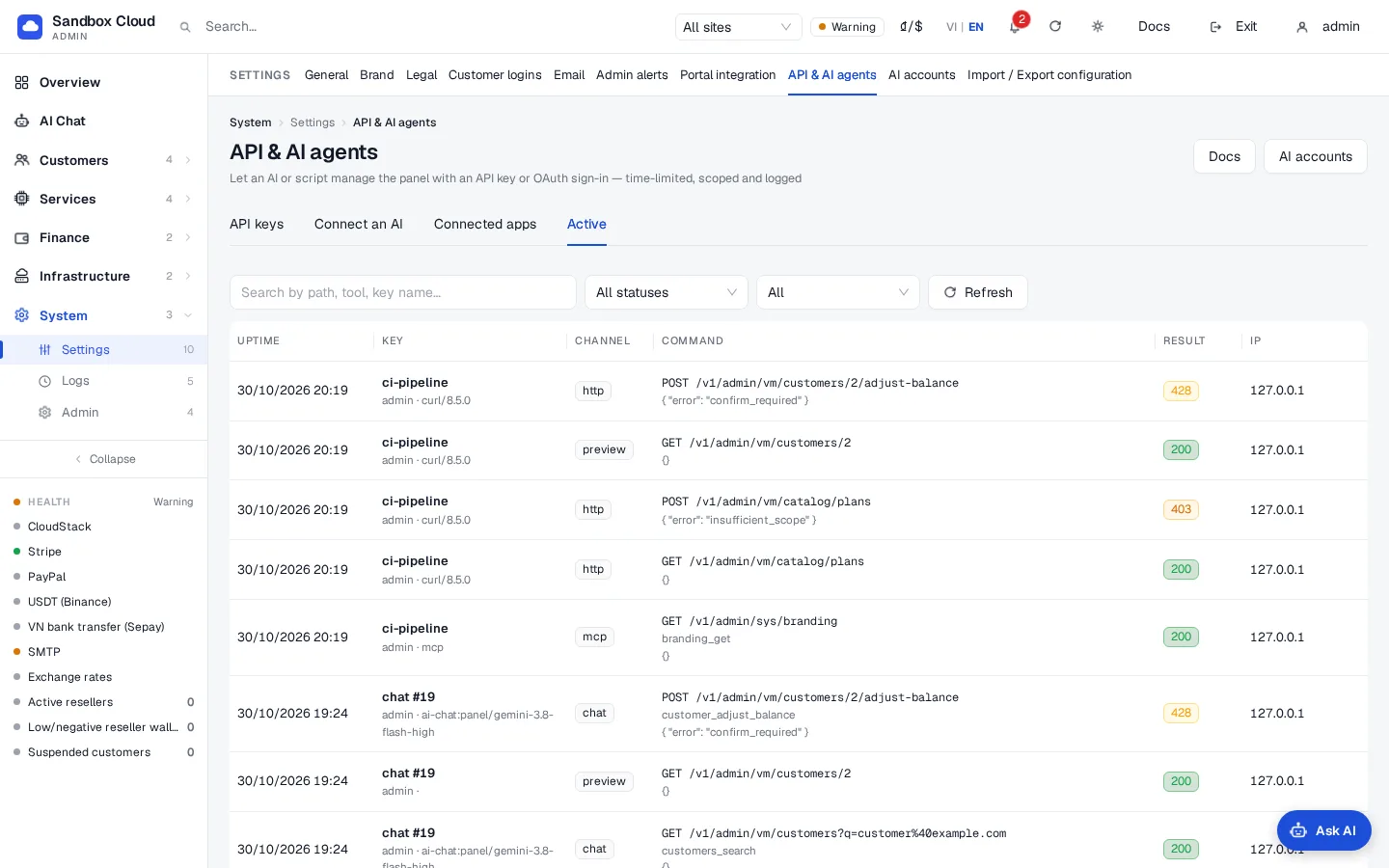
When a call needs confirmation, nothing changes yet. The answer is HTTP 428 with confirm_required, a confirm_token, a preview (method, path, reason, the new values and, when available, the current values) and expires_in: 300.
- The client shows you the preview.
- After you approve, it repeats the same request (same method, path and body) with the header
X-Confirm-Token: <confirm_token>. MCP tools take the argumentconfirm_tokeninstead. - The token works once and expires after 5 minutes.
Keys created inside the admin for AI Chat can only be confirmed on screen: the answer says confirm_in: "ui" and a confirmation card appears in the admin. The AI cannot approve it.
Rate limit and IP rules
- Over the per-minute limit a call returns
rate_limited(HTTP 429) withRetry-After: 60. - With IP ranges set, calls from any other address return
ip_not_allowed(HTTP 403).
Activity log
The Activity tab lists every call made with a key, newest first: time, key, client, how it arrived (http, mcp, chat, cli, confirm, preview), method and path, tool, HTTP status, IP and the (masked) details. You can search by path, tool or key name, show only errors (HTTP 400 and above) or only calls waiting for confirmation (428 and above), and limit the period to the last hour, 24 hours or 7 days. NexCMP keeps the latest 200,000 entries. Changes made through a key also appear in Logs › Admin actions under the name ak:<admin>/<key name>.
Verify
Test a read-only key from any machine that is inside the IP range:
bash
curl -s https://cloud.example.com/v1/admin/agent/tools \
  -H "Authorization: Bearer ak_XXXX"
You get a JSON list of the tools your scopes allow. Run one:
bash
curl -s -X POST https://cloud.example.com/v1/admin/agent/tools/system_health \
  -H "Authorization: Bearer ak_XXXX" \
  -H "Content-Type: application/json" -d '{}'
The key's Last used time moves and the call appears in Activity. The full tool list and an OpenAPI description (/v1/admin/openapi.json) are described in Connect an AI client.
Errors
Errors are JSON: {"error": {"code": "...", "message": "..."}}.
| HTTP | code | Meaning | Fix |
|---|---|---|---|
| 401 | invalid_key | The key is missing, malformed or unknown. Also returned when an ak_ key is used on a non-admin path. | Check the key; use it only on /v1/admin/ and /mcp/admin. |
| 401 | key_expired | The key's expiry passed. | Create a new key. |
| 401 | key_revoked | The key was revoked. | Create a new key. |
| 403 | ip_not_allowed | The caller's IP is outside the key's IP ranges. | Call from an allowed IP, or create a key with the right range. |
| 403 | local_only_key | A key made for AI Chat or the server CLI was used from another machine. | These keys only work on the panel server itself. |
| 403 | insufficient_scope | The key lacks a scope; the answer includes required_scope. | Create a key with that scope. |
| 403 | forbidden_for_keys | The endpoint, or the setting you tried to change, is closed to keys. | Do it in the admin. |
| 403 | demo_read_only | The panel is in demo mode and the call writes. | Use a non-demo panel. |
| 403 | confirm_in_ui | This action must be confirmed on screen in the admin. | Approve the confirmation card. |
| 428 | confirm_required | A preview is ready; nothing changed. Includes confirm_token. | Show the preview, then repeat with X-Confirm-Token. |
| 409 | confirm_expired | The token is older than 5 minutes. | Send the request again for a new preview. |
| 409 | confirm_mismatch | The token belongs to a different request (method, path or body differs). | Repeat the identical request. |
| 409 | confirm_invalid | Unknown or already used token. | Send the request again for a new preview. |
| 429 | rate_limited | Too many calls this minute. | Wait for Retry-After. |
| 400 | invalid_path | The path contains forbidden sequences. | Use a plain path. |
| 413 | too_large | The body is over 10 MB. | Send less data. |
| 400 | invalid_argument | A tool argument is missing, unknown or has the wrong type; the message names it. | Fix the argument. |
Limits & notes
- Keep keys short-lived and narrow. Prefer one key per client so you can revoke a single one.
- A key is as powerful as its scopes.
secrets:writeplusbilling:writeis the most sensitive combination; money actions still stop at a preview. - Keys made automatically (for AI Chat, the server CLI) live for minutes only and work only from the panel server.
- To cut off an AI client at once, revoke its key. OAuth connections are revoked on the Connected apps tab (OAuth connectors).