Bare Metal platform
Open Source bare metal server billing and automation
NexCMP is self-hosted billing and customer-portal software that sells whole physical servers from racks you own. It manages Dell servers directly through iDRAC and the Redfish API: customers order and pay from a wallet, get a server with an IP from your pool, and then power it, open a console and install an operating system from the portal.
Dell iDRAC 9 is supported; HPE iLO and Supermicro are Soon. The module is part of NexCMP Free and Source and is off until you switch it on. It is not a one-click setup: it needs a management network, an ISO web server (one command sets it up) and two safety switches that you open.NexCMP Source: full source code for $499, one-time. Use, modify and self-host for your own business. You may sell the services you operate; you may not resell or redistribute the source code or builds. Source license terms
What the Bare Metal module is, and what you need
The module sells whole physical servers. Each server stays in your rack and is managed through its own iDRAC over the Redfish API. A customer rents one server at a time, a server has at most one live rental, and customers never see the iDRAC address, user name or password.
NexCMP sells, bills and manages the servers. It does not supply servers, IP addresses or bandwidth: those are yours. Bare Metal is sold from your main site only, not from reseller sites.
How your customers manage a Bare Metal server
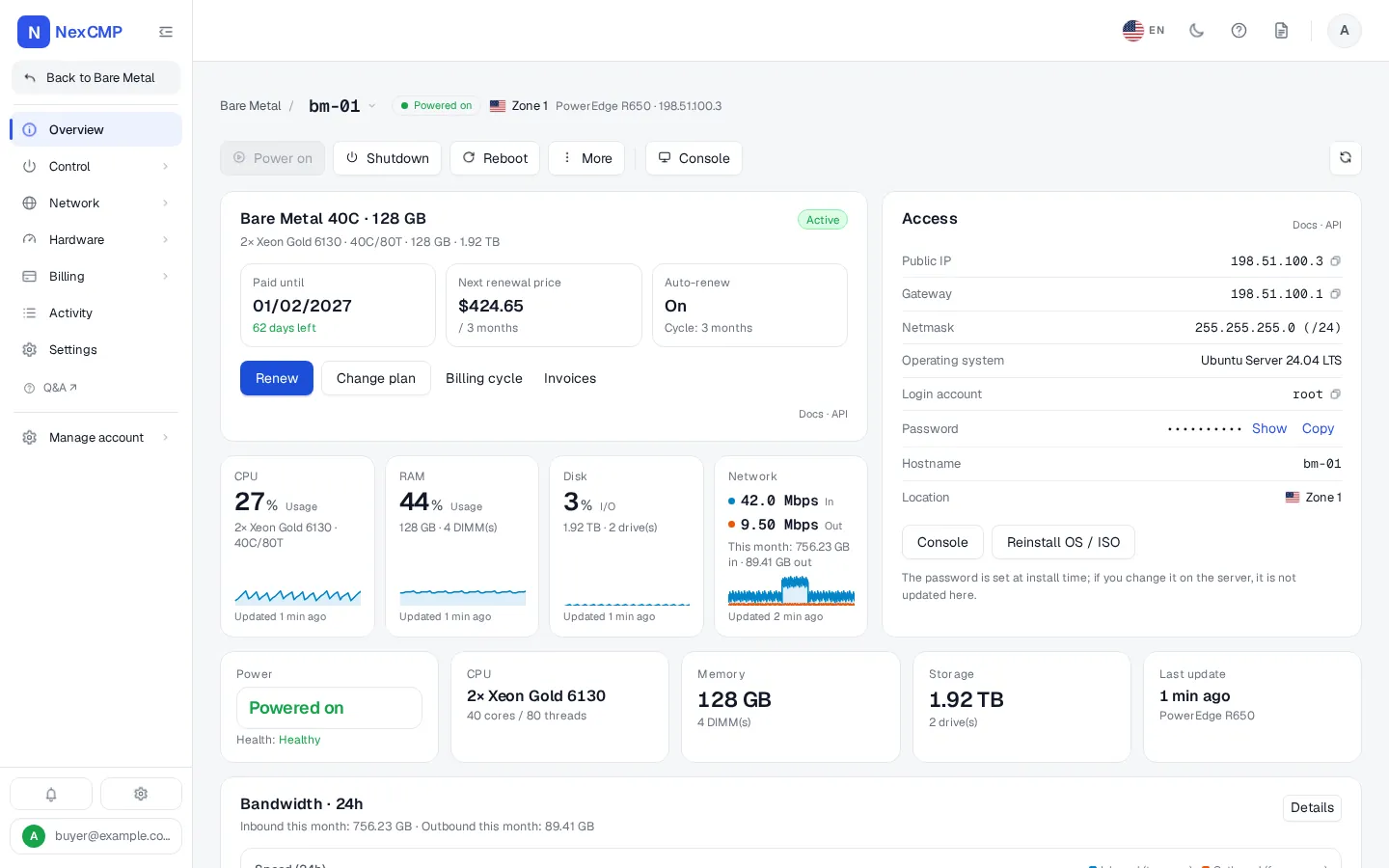
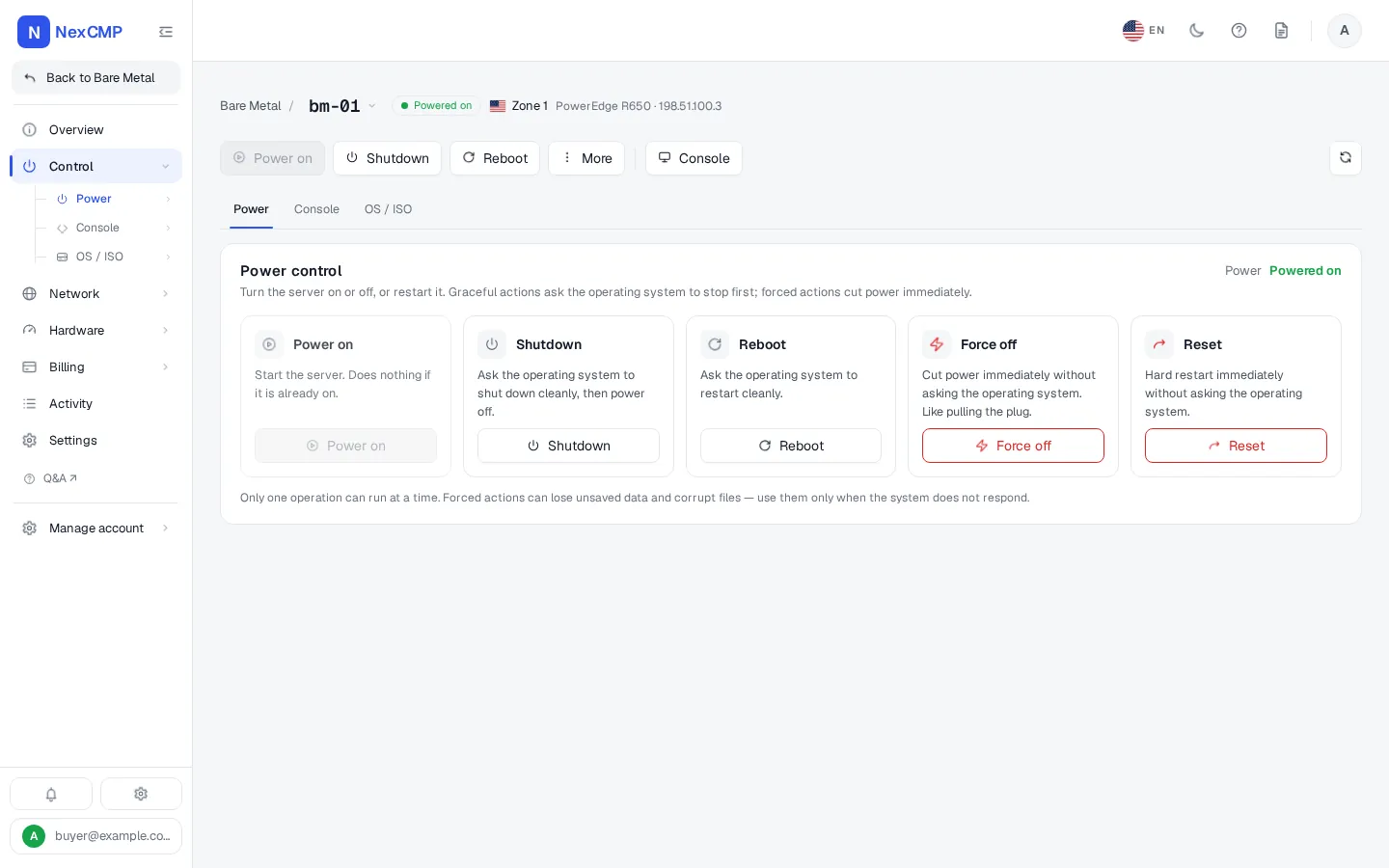
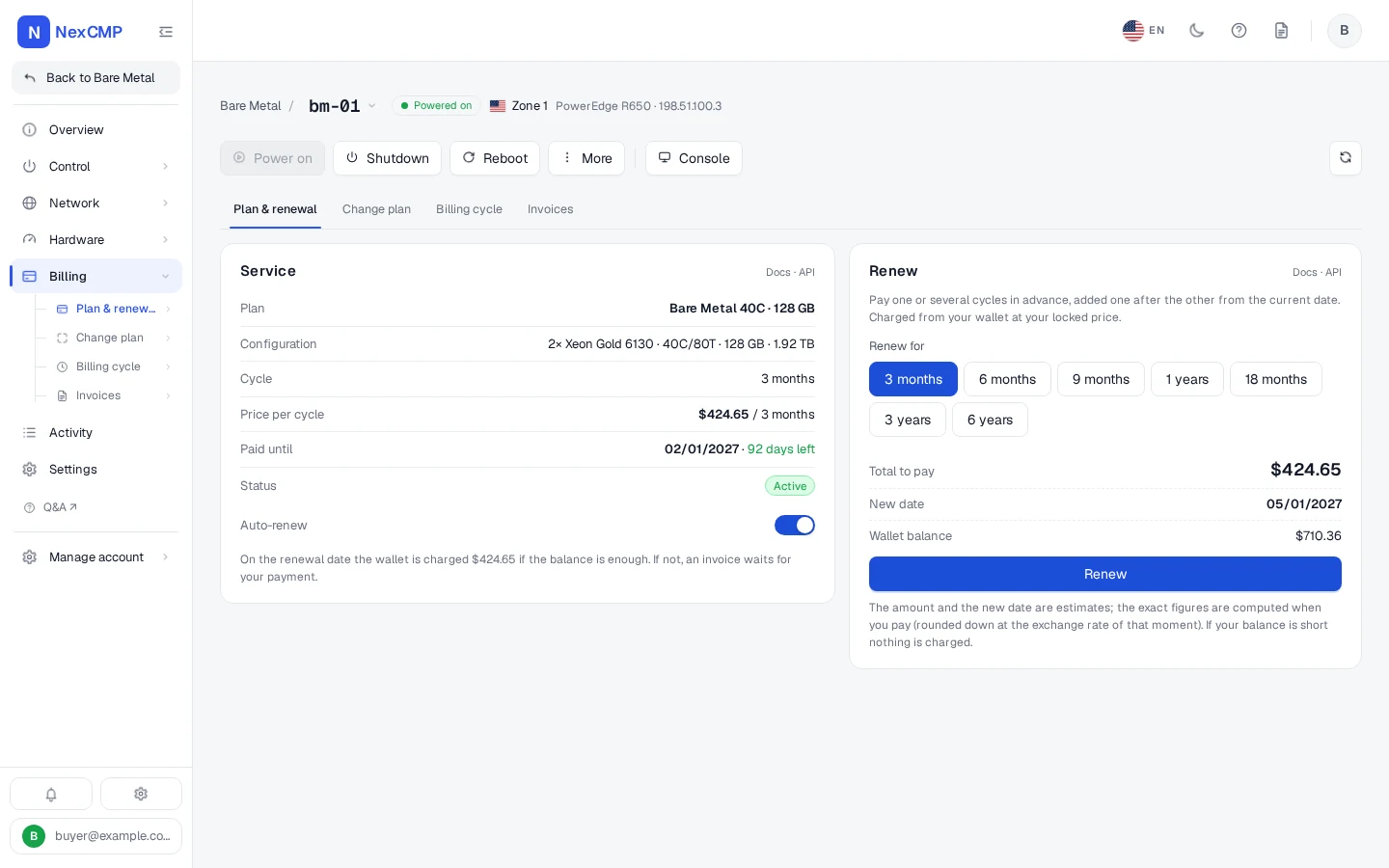
Every screen is a tab of the service page in the customer portal, shown with sample data. Pick a tab, use the arrows or the left and right keys, or open the full-screen viewer.
Overview
Power
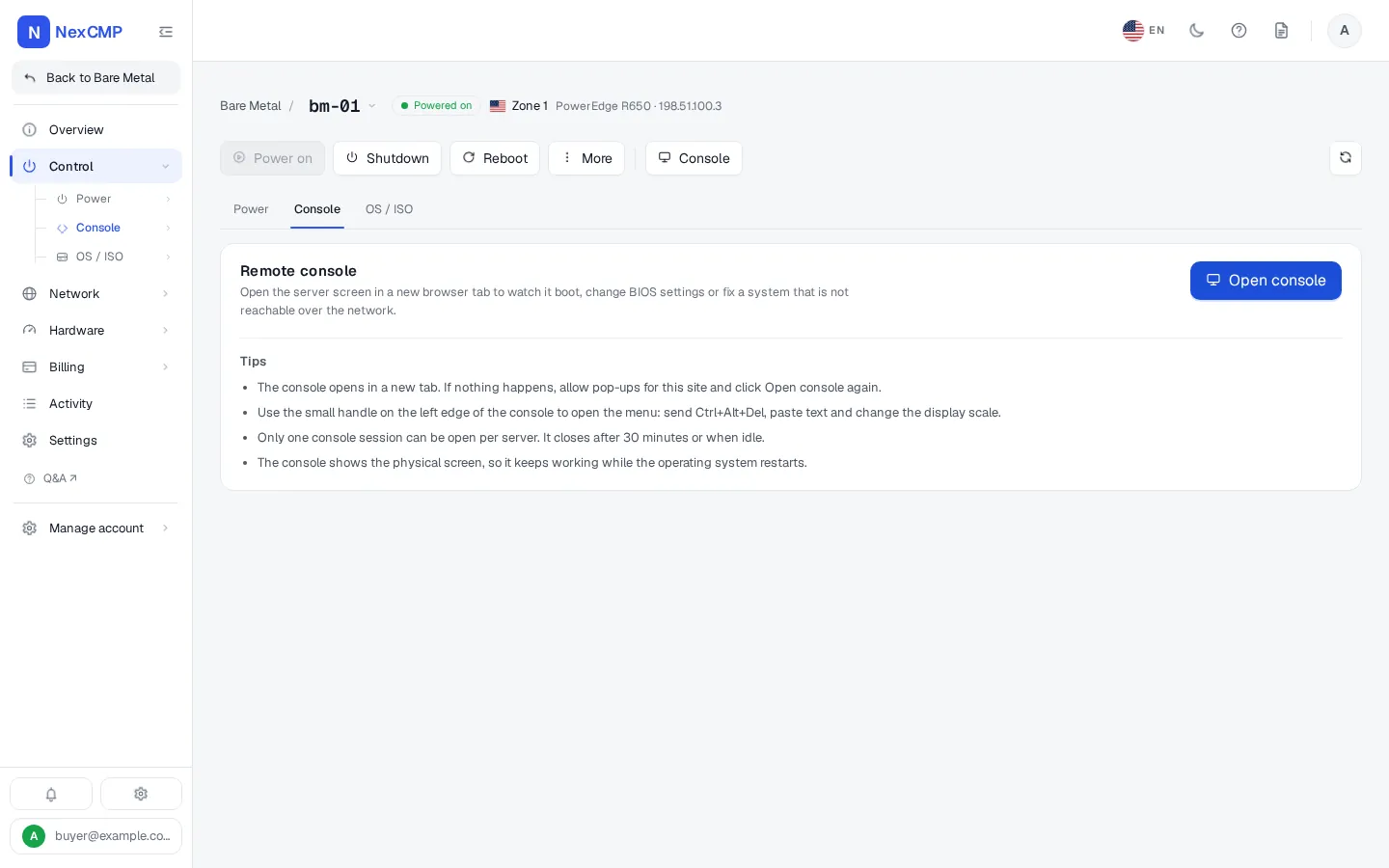
Console
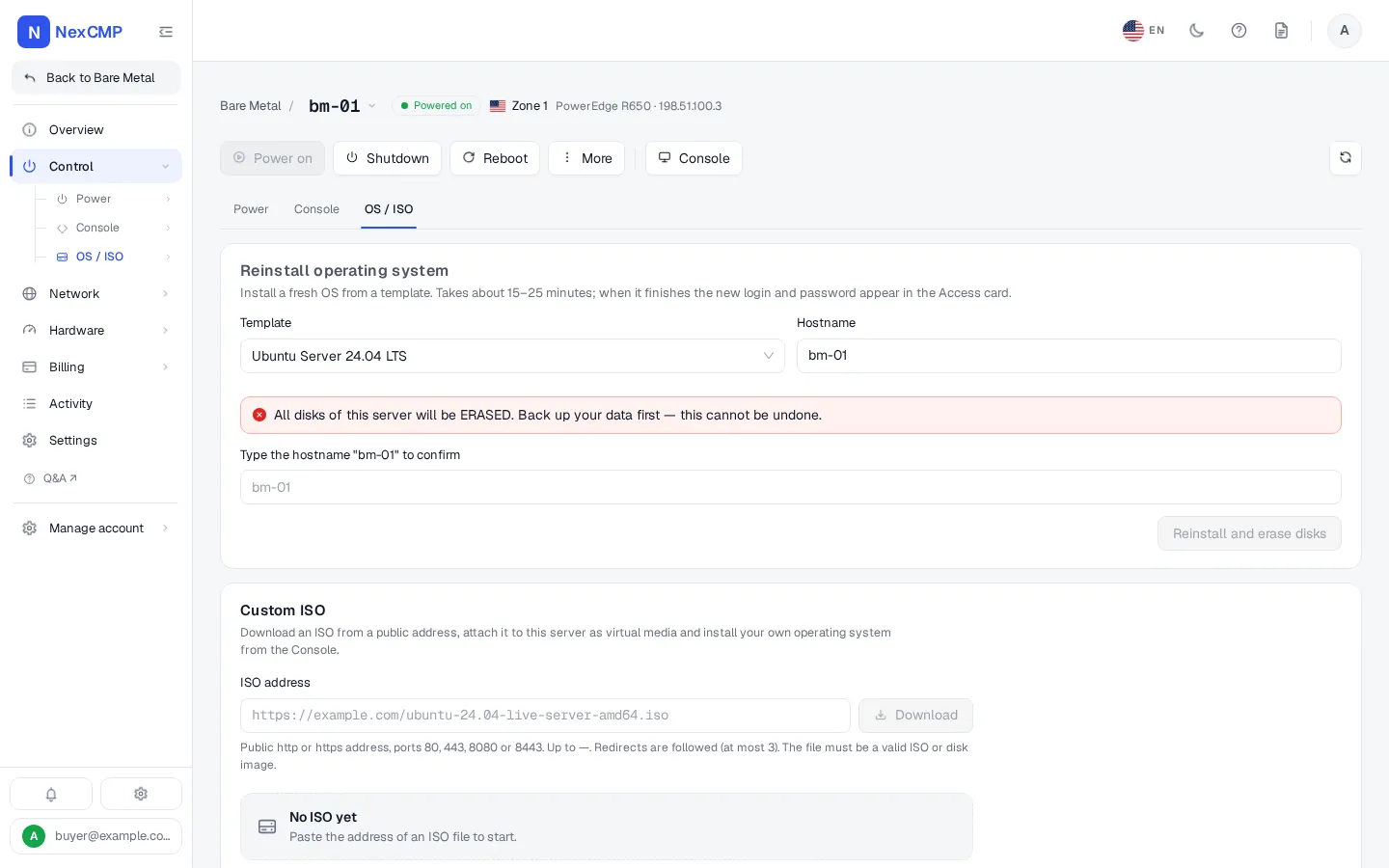
OS / ISO
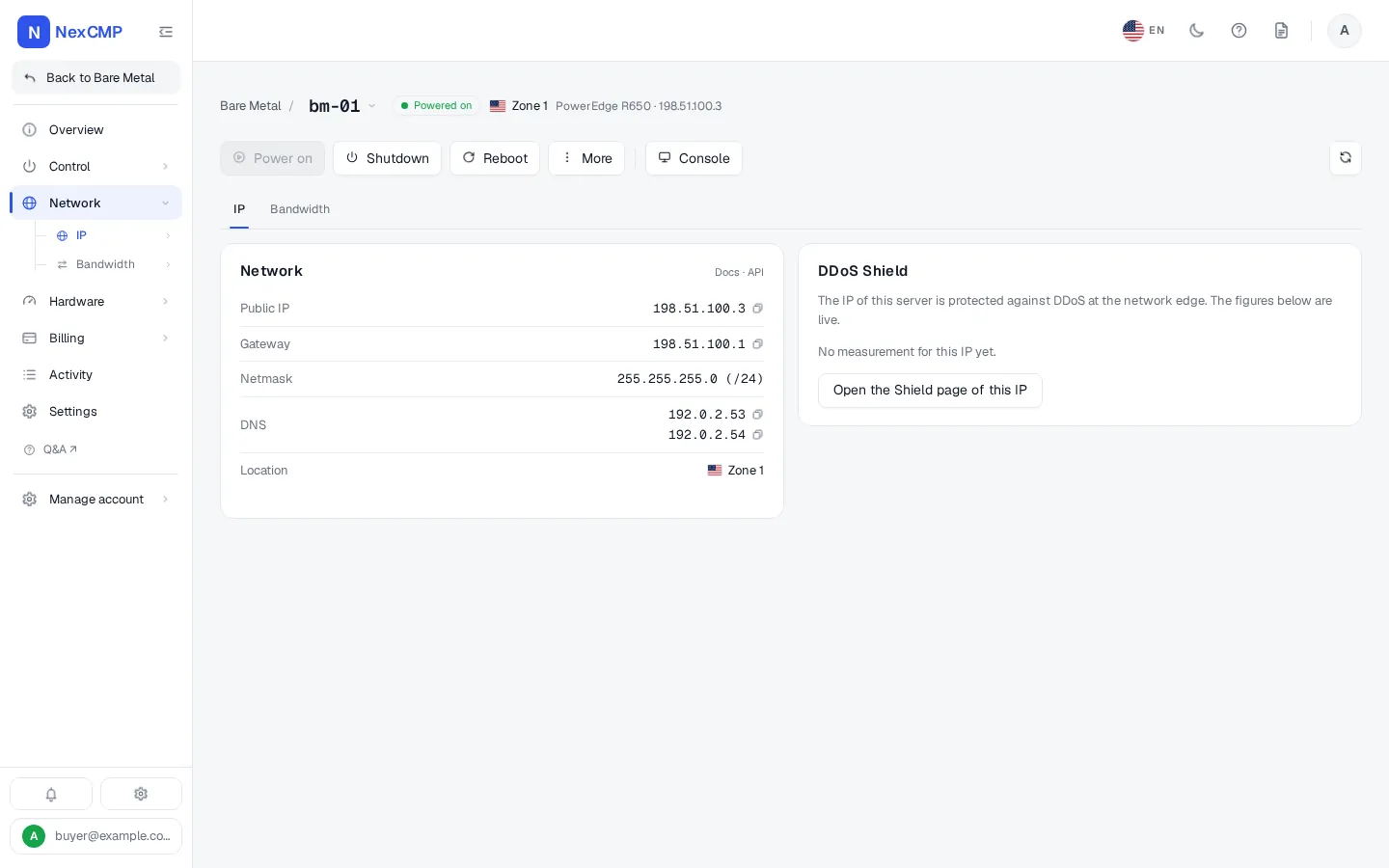
IP
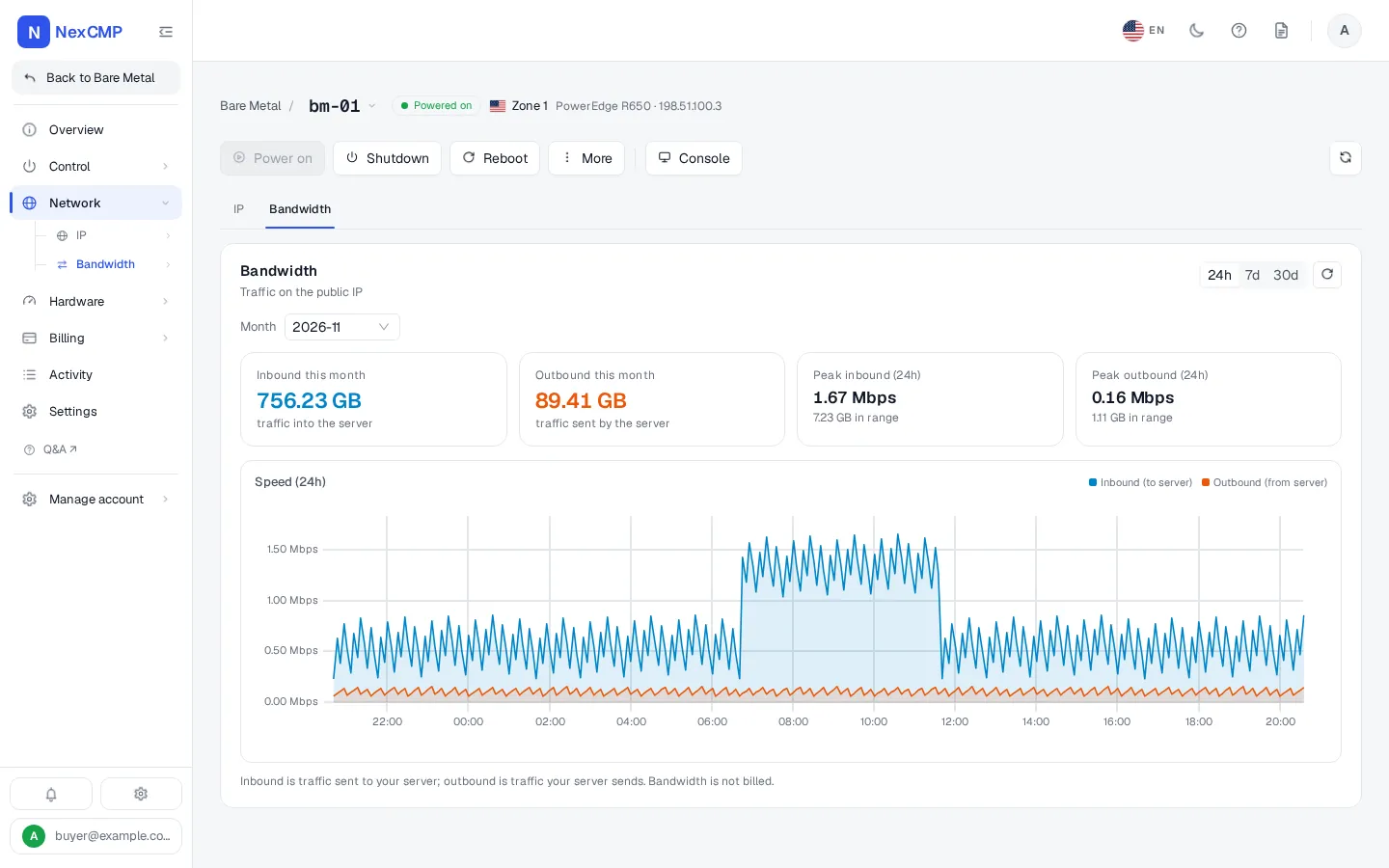
Bandwidth
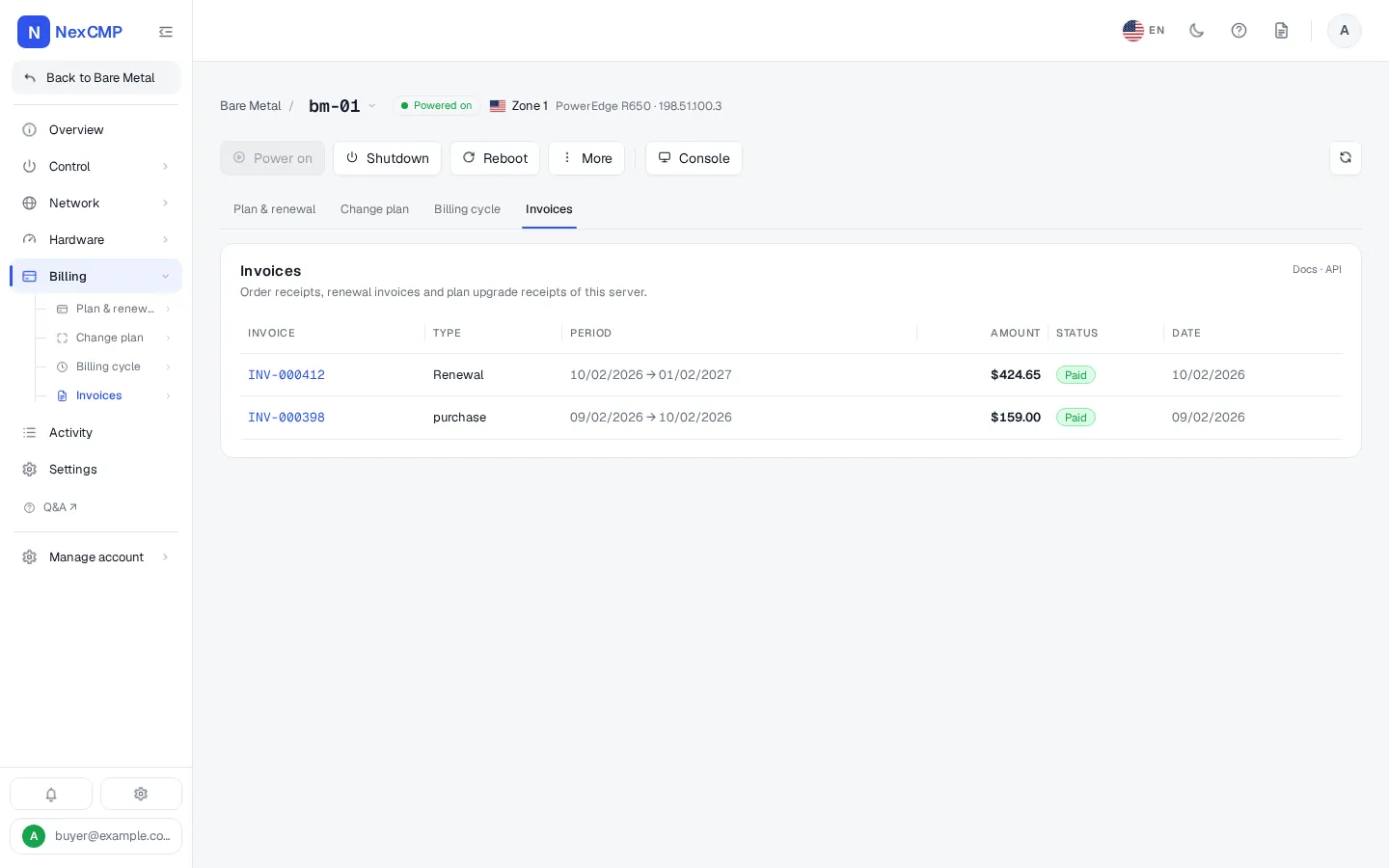
Configuration
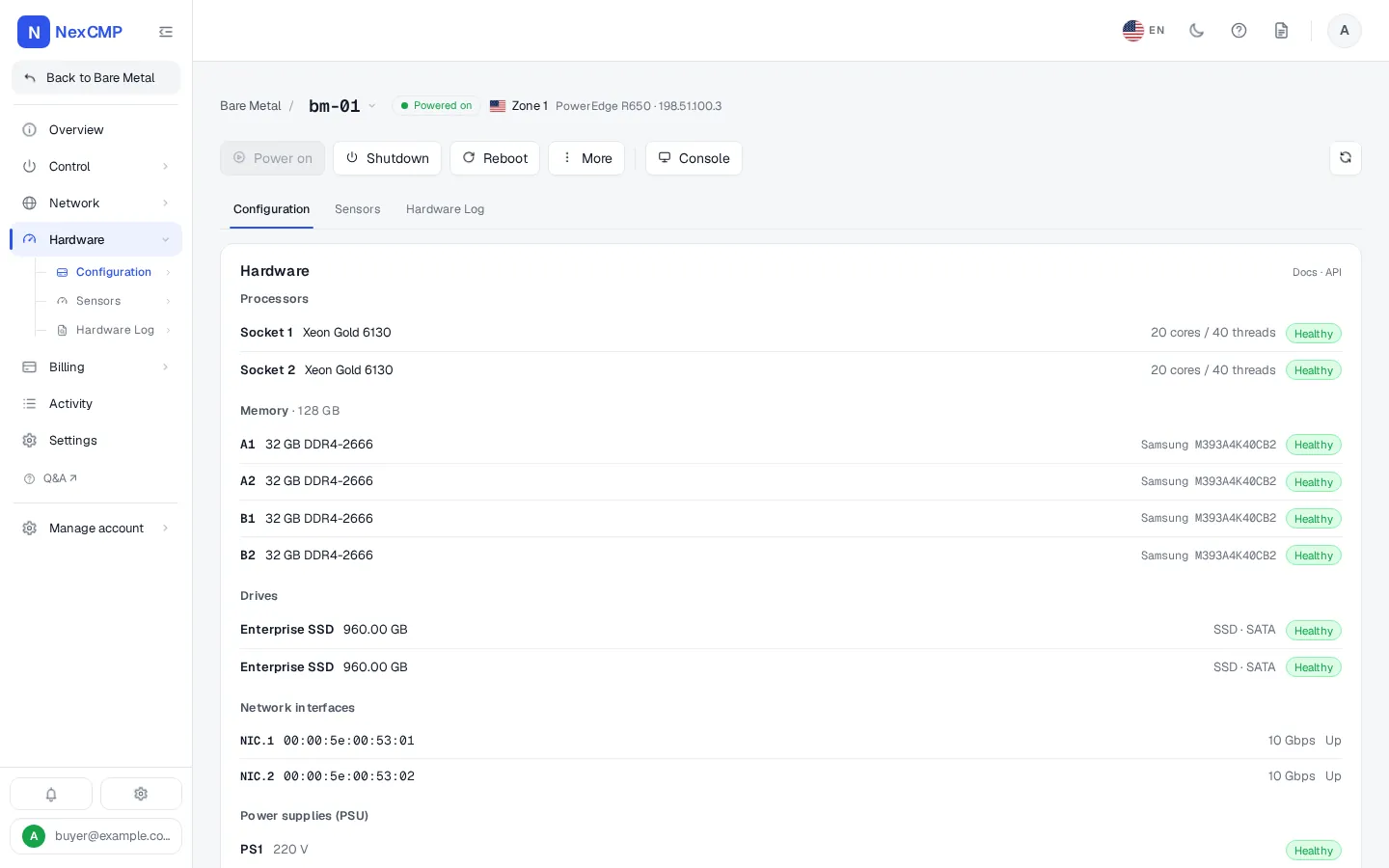
Sensors
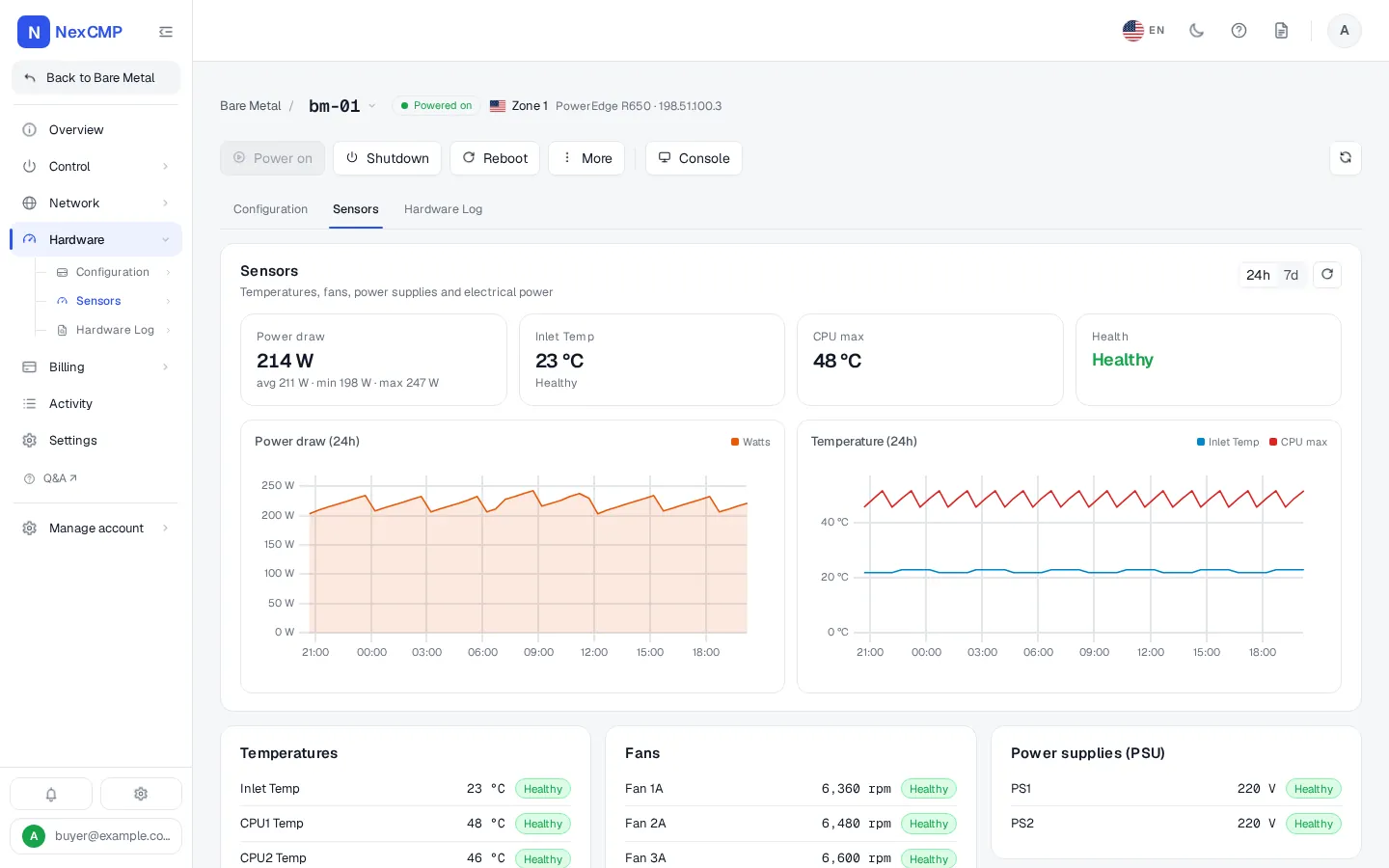
Plan & renewal
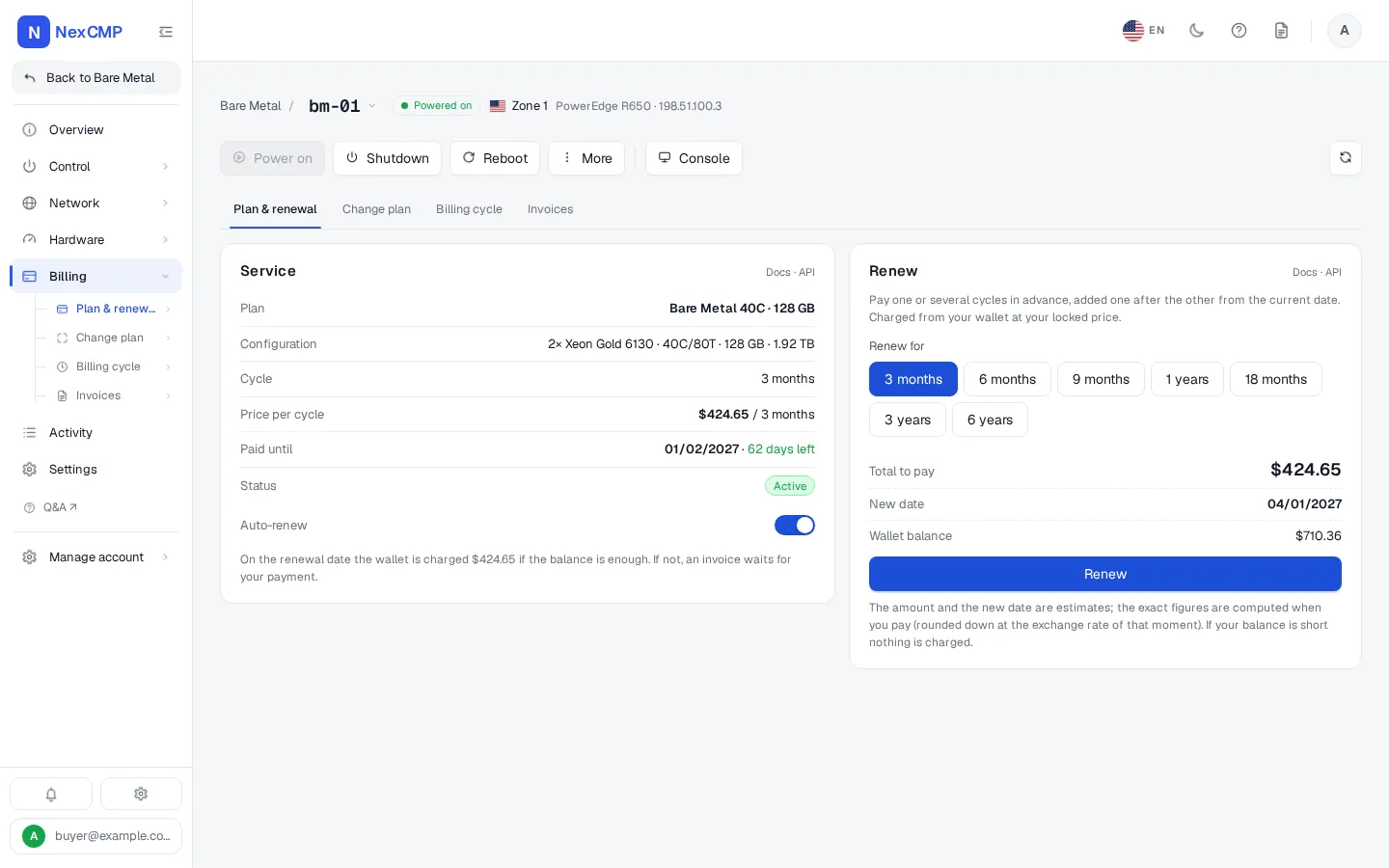
Invoices
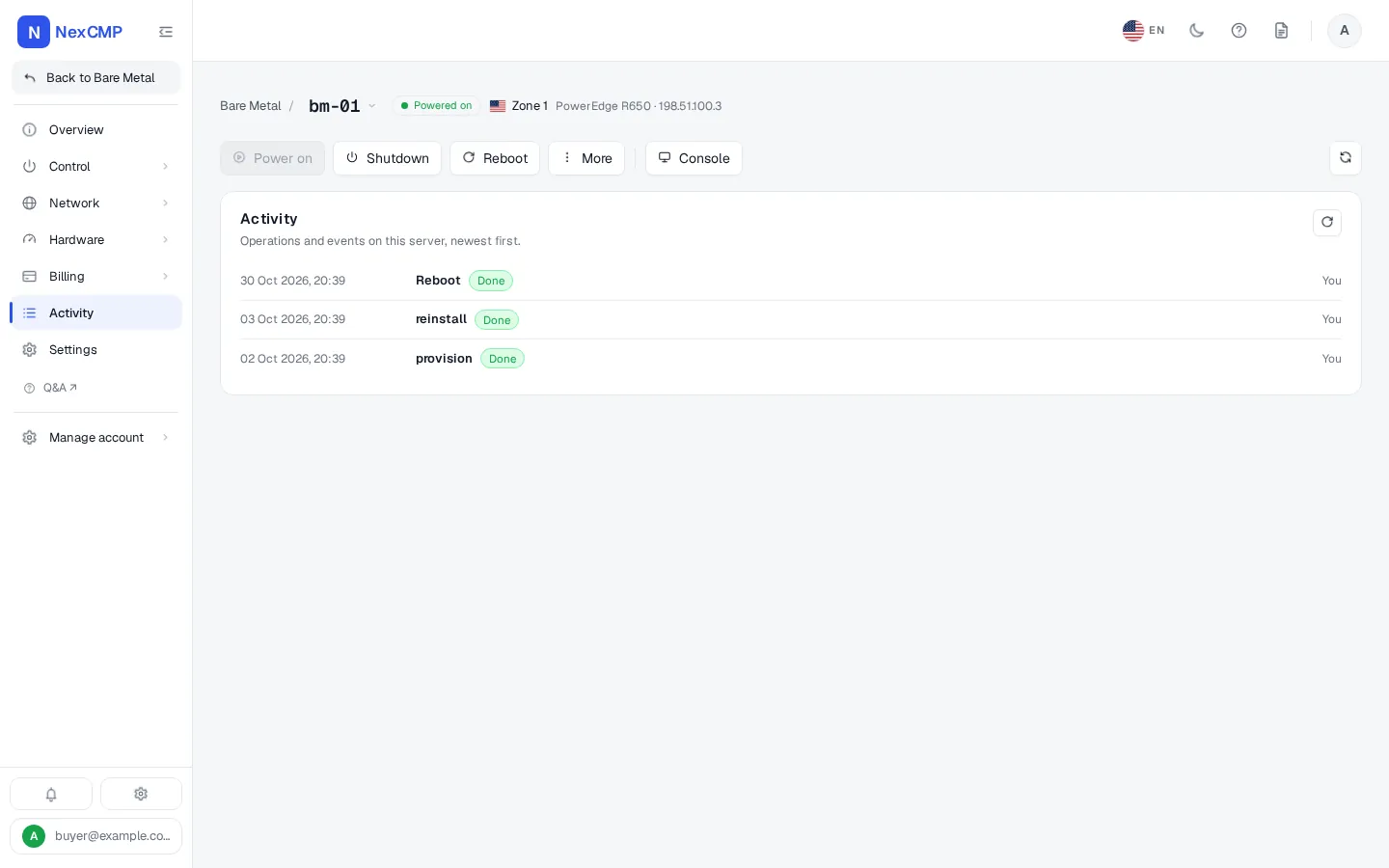
Activity
Supported hardware
Dell iDRAC 9
- Status
- Supported
- What it means
- Read and controlled through the iDRAC Redfish API. This is the only hardware the module drives.
HPE iLO (Soon)
- Status
- Soon
- What it means
- In development, not in any NexCMP release.
Supermicro (Soon)
- Status
- Soon
- What it means
- In development, not in any NexCMP release.
No release dates are promised. Console and virtual media (ISO and OS install) need an iDRAC Enterprise or Datacenter license on each server.
How the pieces fit together
Customers talk to the panel only. Only the panel reaches the iDRAC, on a network customers cannot see.
What runs by itself
Only these parts are automatic once the module is set up. Everything else on this page is a step you perform.
Order to delivery
Once the customer has verified their email address, an order takes payment from the wallet, picks a free server of that plan in the zone, takes an IP from your pool, creates the rental and queues the OS install if one was chosen. If a step fails, the whole order is rolled back and the wallet is not charged.
A waiting list when nothing is free
If no matching server is free, the order is accepted, paid and kept waiting. The worker gives the oldest waiting order a server once one fits (checked every 30 seconds), or you assign one. The customer can cancel a waiting order for a full refund.
OS install from ISO
NexCMP builds an install ISO for that server from your template, mounts it as virtual media, sets a one-time boot, restarts the server and waits for the new OS to answer, within 150 minutes by default. The one-time password is shown to the customer once, for 7 days. With no template ISO on your ISO server the order page says automatic installation is not available; the customer can still order and install through the ISO and console tabs.
Refund on a failed install
If an install fails or times out, the order is refunded to the wallet once, the IP returns to the pool and the server is locked for maintenance so that you can inspect it.
Renewals and reminders
On the renewal date NexCMP raises the invoice and, with auto-renew on and enough balance, pays it from the wallet. Reminders go out 7, 3 and 1 days before, and a period is never charged twice.
Lock when overdue
After the grace period (3 days by default, 0 to 30) an unpaid rental is suspended: the customer can look but cannot power, reinstall or open a console. The server is not powered off or wiped, and NexCMP never ends a rental by itself. Paying reopens it.
What you do by hand
The module does nothing to a server until these steps are done.
- Prepare the management network and a fixed private address and Administrator account for each iDRAC.
- Import the servers. Each one enters stock locked and out of the sales list.
- Edit the plans (the sample plans are off), attach one to each server, mark it sellable and turn reinstall on.
- Prepare OS template ISOs and an HTTP file server that serves them to the iDRACs.
- Open live operations (typed confirmation) and unlock each server in its Lock tab, then turn sales on (typed confirmation).
- Handle exceptions: waiting orders, a changed iDRAC certificate, a server locked after a failed install.
Importing and managing servers
Servers are managed in the admin console under Infrastructure > Bare Metal.
Test before saving
Enter the iDRAC address and an Administrator account and press Test connection: it sends read commands only and saves nothing. Then save to stock, or use Bulk import. NexCMP reads model, CPU, RAM, disks, network cards, service tag and iDRAC license, again every 6 hours, and refuses a duplicate address or service tag.
Certificate pinning and credentials
The first certificate an iDRAC presents is pinned; if it changes, polling and writes stop until an admin re-pins it. The iDRAC account is stored encrypted and never returned by the API or written to the audit log. A rejected login stops polling that server.
A short write allow-list
The Redfish client allows five write commands: power reset, mount and eject virtual media, one-time boot, and the VNC console settings. It has no call for BIOS, RAID, firmware, iDRAC users or network settings, and it cannot clear logs.
Plans, cycles and pricing
You set every price. Nothing below is a fixed NexCMP price.
Plans with a spec
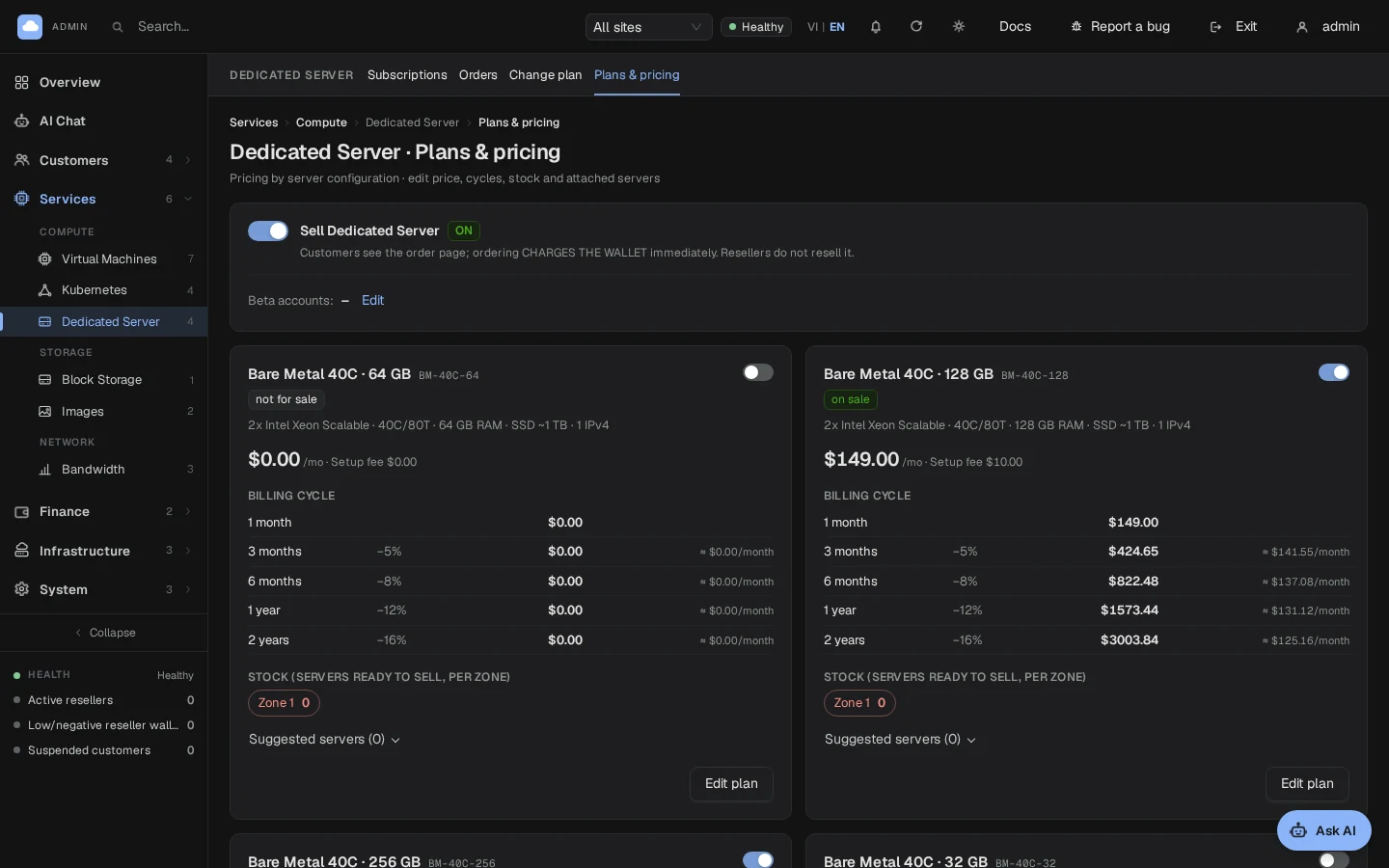
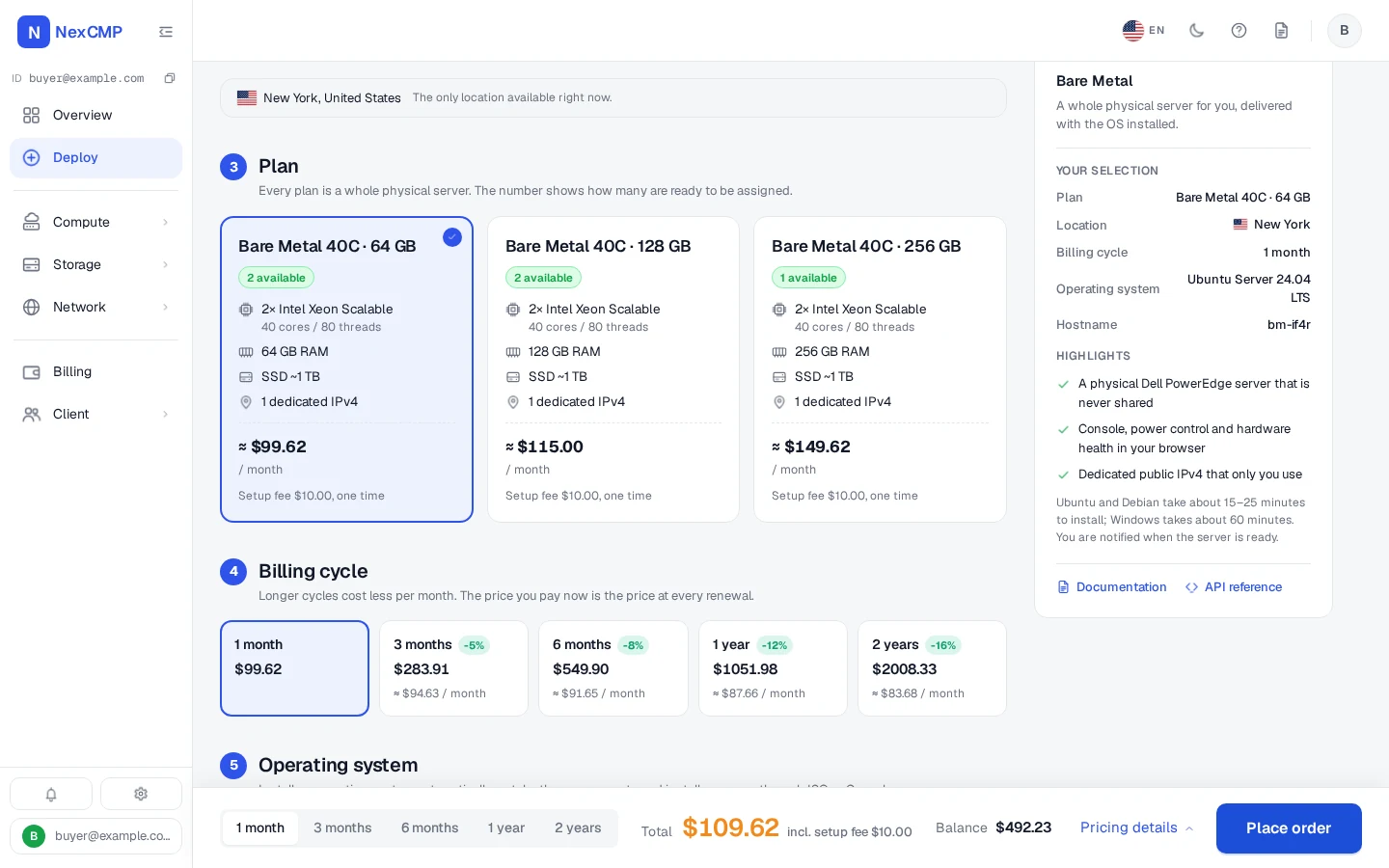
A plan has a name, a spec shown to customers, a monthly price, a set-up fee and cycles (monthly to two-year, each with a discount you set). Attaching a plan to a server checks its real RAM and disk.
Price currency
On a new install you enter plan prices in US dollars, to the cent, and the wallet is charged exactly that: no exchange rate is needed. An install that already had plans priced in Vietnamese dong keeps dong and still needs an exchange rate in its settings.
What counts as stock
A server is in stock for a plan when it is active, sellable, unlocked, reachable, attached to the plan, in the zone and has no live rental or running job. Sample plans ship disabled; nothing is on sale until you enable a plan and turn sales on.
Wallet, auto-renew and quota
Orders are paid from the prepaid wallet; auto-renew is on by default for a new order. The quota key dedicated.servers limits the servers one account can hold and is checked before the wallet is charged.
IP pools
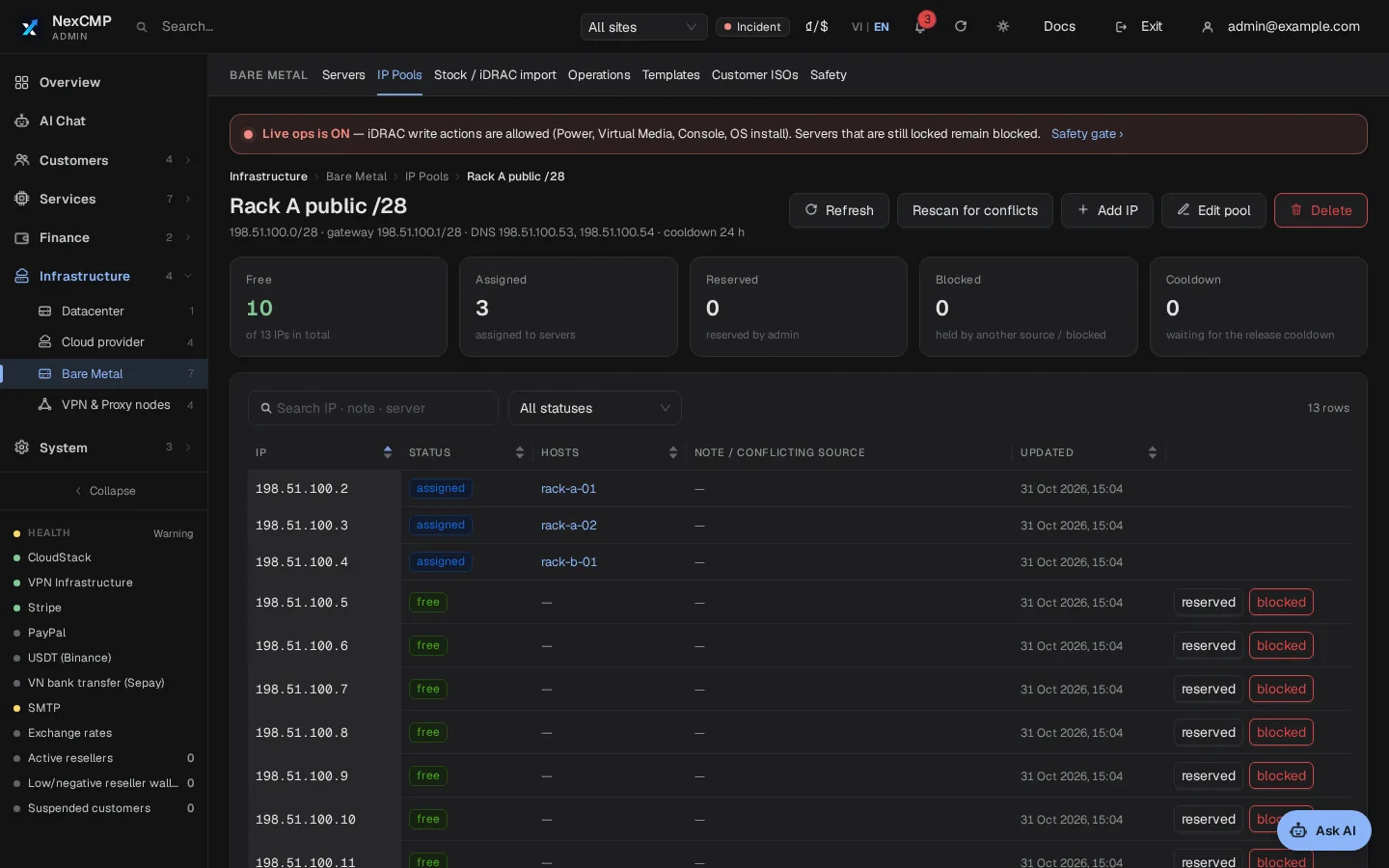
Each server gets one public IPv4 address from a pool you define: ranges with gateway, prefix and DNS, up to 4,096 addresses per pool. Each address is free, assigned, reserved, blocked or in cooldown, and one is taken at order time.
Addresses already used by a cloud VM, a VPN endpoint, a Kubernetes cluster or another server are found and marked blocked. A released address waits 24 hours by default before it is handed out again, because the old OS may still be configured with it; you can set 0.
Power, console, reinstall and ISO
Customers and admins use the same controls, and every write passes the safety gates below.
Power
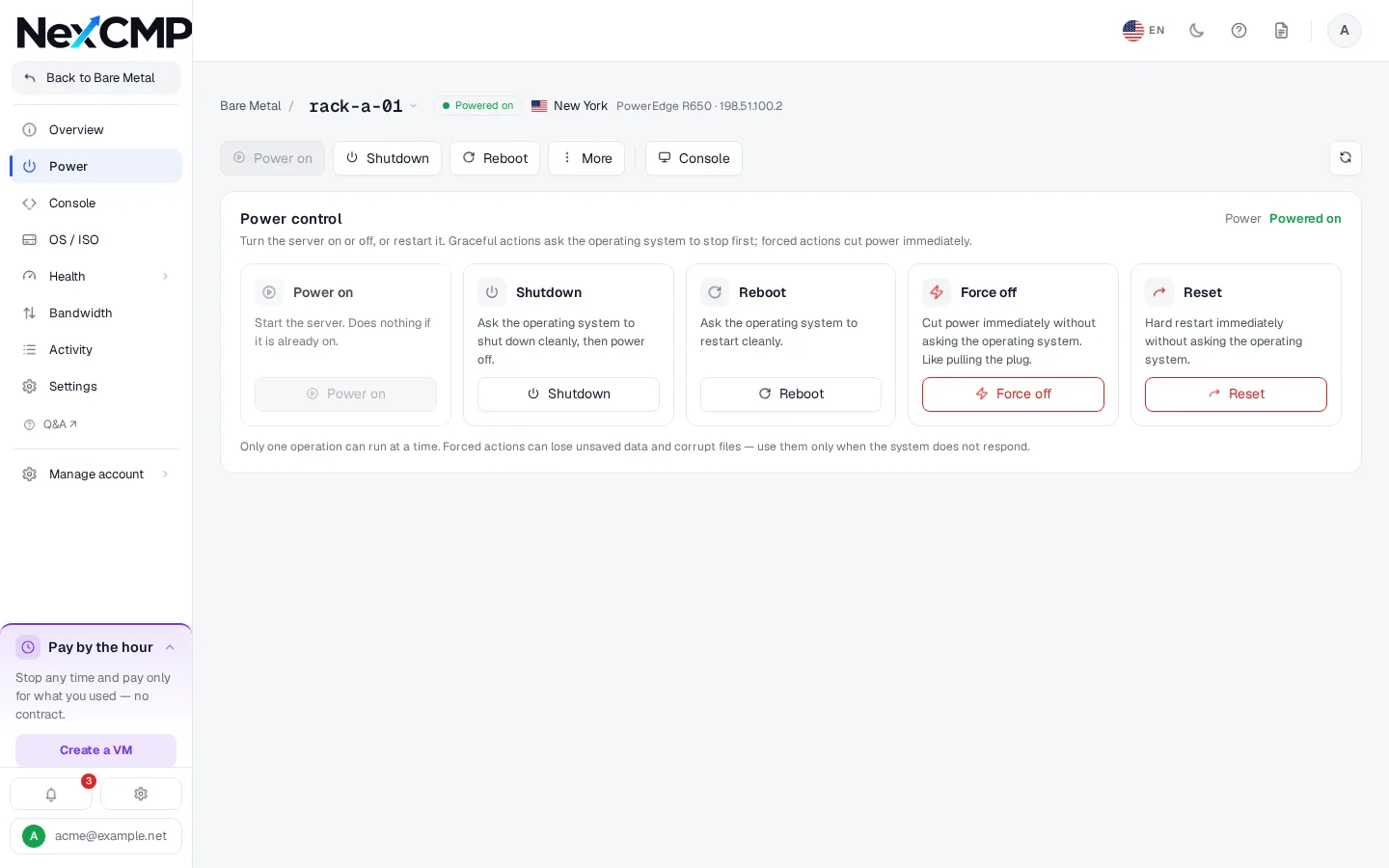
Power on, graceful shutdown, restart, force off and reset. Anything other than power on needs the server name typed, and a customer is limited to 6 power actions a minute.
Browser console
NexCMP turns on the iDRAC VNC server with a one-time password, bridges it to the browser through the panel and turns it off afterwards. One session per server at a time, 30 minutes by default.
Reinstall and OS templates
A customer picks an enabled template and a hostname; a reinstall erases the disks. The code has installers for Ubuntu, Debian (UEFI servers only), Windows Server and Proxmox VE. NexCMP ships no OS image: you supply a prepared ISO per template, offered only when its file exists. Windows templates are off in the sample list, and Windows licensing is yours.
Customer ISO
A customer can paste a link to their own ISO. NexCMP downloads it to the server within size, storage and time limits you set, then mounts it as virtual media. The iDRAC is never given the customer's link.
Sensors and the hardware event log
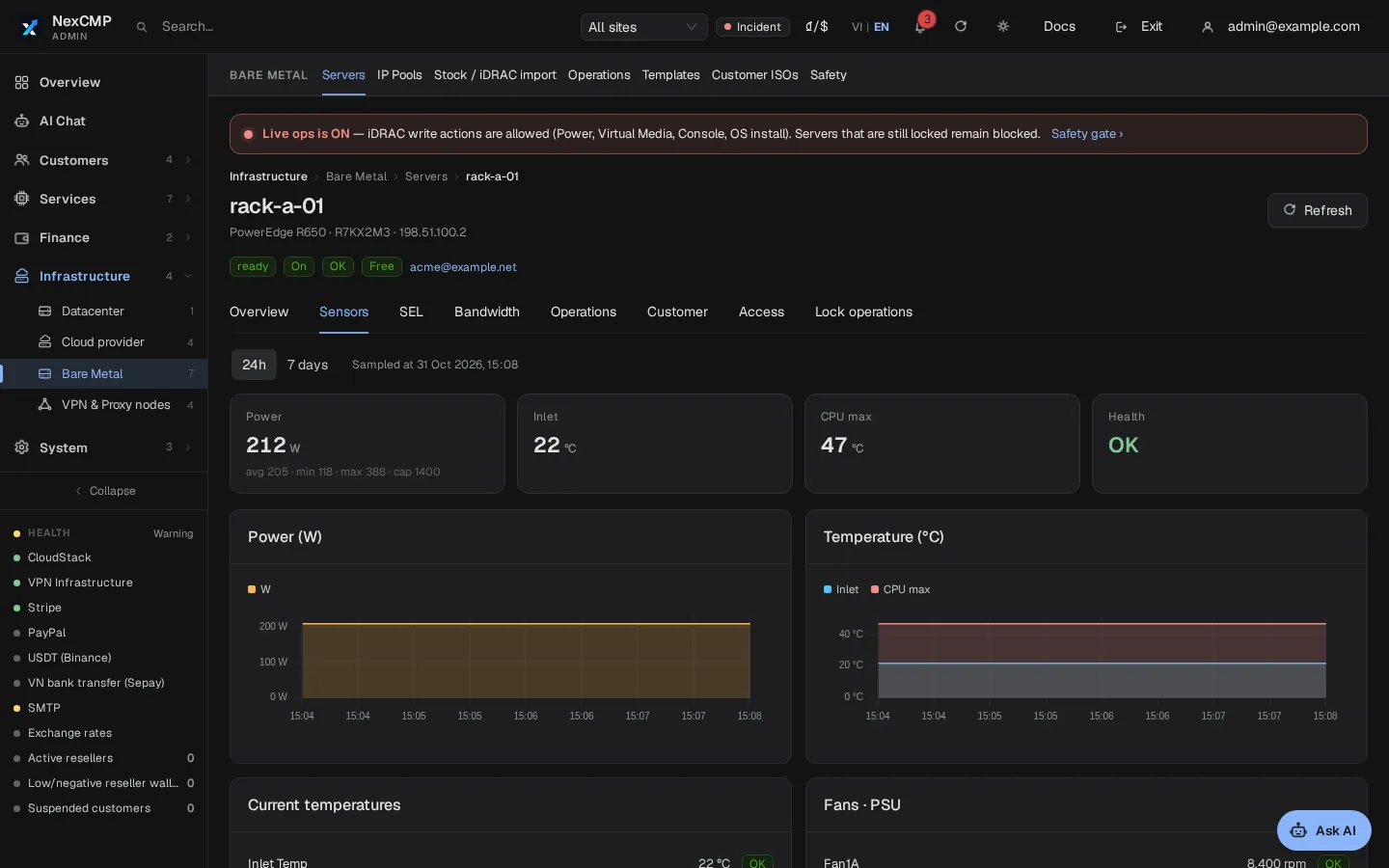
Health, temperatures, fans, power supplies and power draw are read from each iDRAC every 120 seconds. Customers see 24-hour and 7-day charts of power draw, inlet temperature and CPU temperature.
The top of the server Overview shows four live tiles: CPU, RAM, Disk and Network, each with a 24-hour chart. CPU, RAM and Disk are usage percentages read from the Dell iDRAC (Disk is I/O activity, not free space); Network is the current inbound and outbound speed and the month total from the traffic counter. When the server is off, the iDRAC cannot be reached or the machine does not report a value, the tile shows a dash and a short reason, never a made-up zero. The tiles refresh every minute while the page is open.
The iDRAC System Event Log is read every 15 minutes and the latest 50 entries are kept. Admins see all of them; customers see entries from the start of their rental, filtered by severity and without infrastructure wording.
Safety switches and locks
A write command reaches an iDRAC only when both gates are open.
Live operations (system-wide)
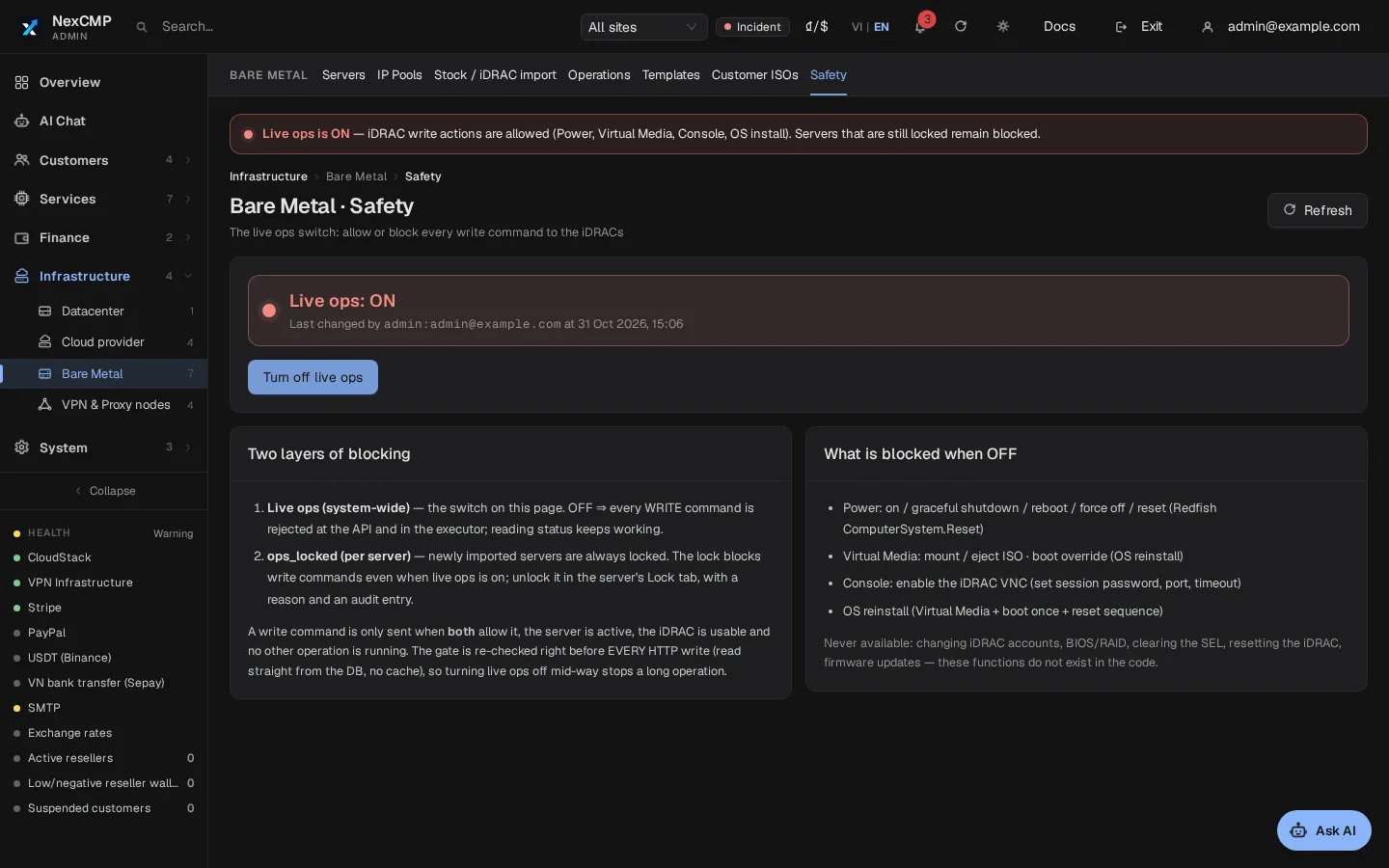
One switch for every write to an iDRAC: power, virtual media, console and OS install. It starts off. Turning it on needs a reason and the typed text ENABLE LIVE OPS; turning it off closes every open console. Reads keep working.
Per-server lock
Each server has its own lock, and imported servers start locked. A locked server refuses writes and shows the customer a lock message. Locking and unlocking take a reason and are audited.
Checked twice, with an emergency stop
Both gates are checked when a request is accepted and again in the worker just before each command. Setting the number of parallel jobs to 0 stops the worker from starting any job.
Sales switch
Selling is a separate switch, off by default, turned on with a typed confirmation. While it is off, customers see no order page and are not charged; existing rentals stay visible.
The Safety page
The system-wide switch and the per-server locks, with the actions NexCMP never performs.
Bandwidth
Bandwidth is read from a traffic-counter file written by a separate counter agent. That agent is not part of the standard NexCMP installation, so a standard install records no usage and the bandwidth tab shows no data. The module only records usage; it never throttles or cuts a server, and plans carry no data cap.
The Bare Metal module in the admin console and the portal
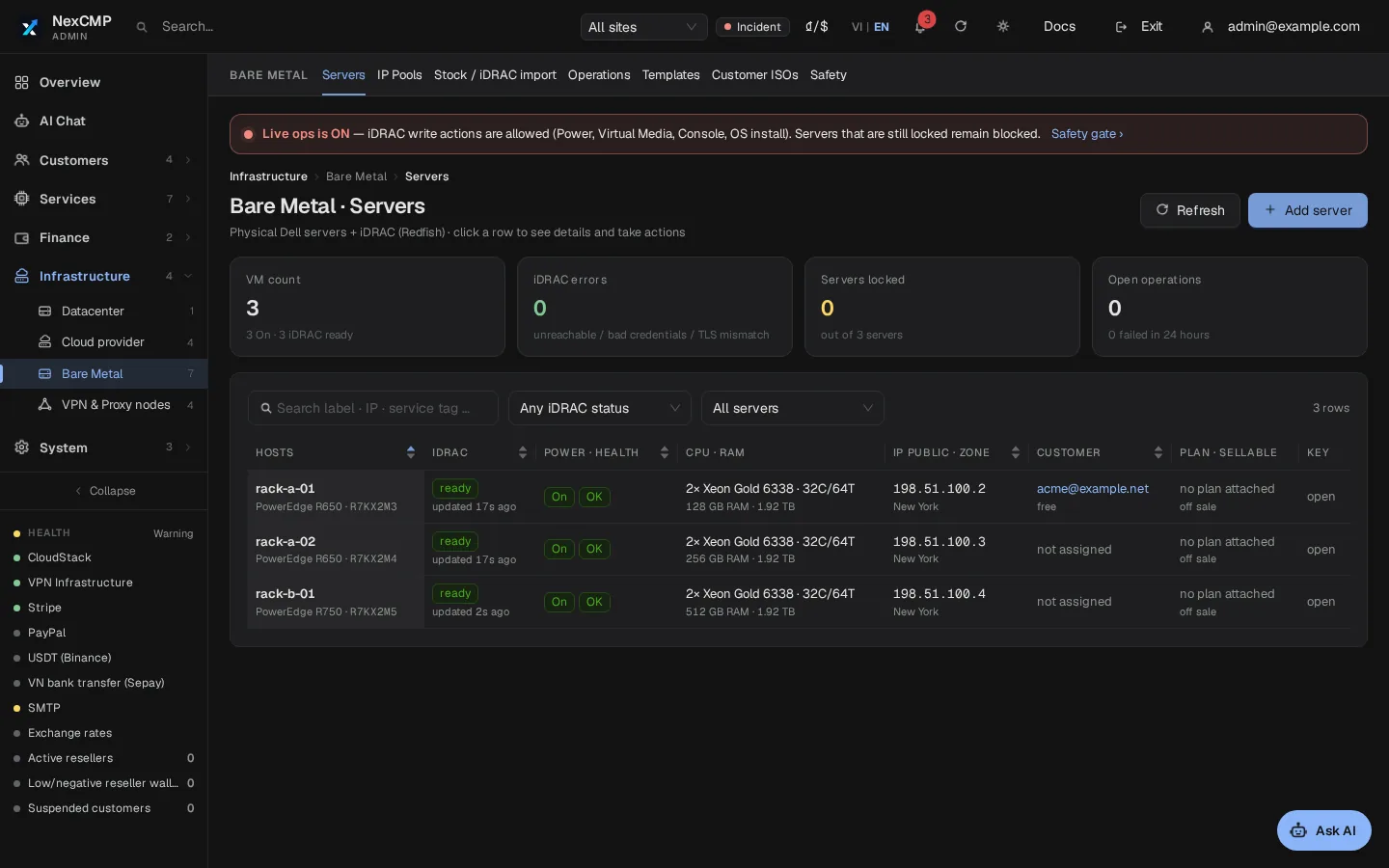
Screenshots from a lab install with sample data and simulated servers.
What your customers can do
Each item is something a customer does in the portal or with a scoped API key.
Order and pay
Choose a zone, plan, cycle, an OS template or none, and a hostname; read the quote and pay from the wallet.
Power and console
Power the server on, off or restart it, and open the browser console while the rental is active.
Install an OS or mount an ISO
Reinstall from an enabled template, or add an ISO from a link and mount it with a one-time boot.
Watch and renew
See hardware, sensors, the event log and activity of their own server, and switch auto-renew on or off.
Renew, change cycle, ask for another plan
Pay 1 to 24 months ahead in one step, choose a different billing cycle from the next renewal, or send a plan change request that your staff approve. Invoices of the server are listed on the same page.
See the OS login again
After an install the customer can show or copy the user name and password of their own server on the Access card, not only once. A new owner never sees an earlier owner's password.
Use the API
API keys carry the scopes dedicated:read, write, console, create and destroy; destroy covers the reinstall that erases the disks.
What you can do as the operator
Each item is in the NexCMP admin console.
Servers and IP pools
Import, label, refresh, lock, unlock, unassign and retire servers, manage IP pools and assign an address to a server.
Plans and sales
Edit plans, attach them to servers, mark servers sellable and run the sales switch. A list of beta accounts can preview the order page while sales are off.
Plan change requests
Customer requests to change plan wait in Services > Dedicated Server > Plan changes. An upgrade charges the difference for the rest of the paid period, a downgrade refunds nothing; you approve or reject each one and nothing is charged before that.
Orders and rentals
Assign a server to a waiting order, cancel with or without a refund, assign a server by hand (free, or with a price and renewal date), edit or transfer a rental and record an invoice as paid.
Operations and audit
Watch and cancel queued jobs, power or reinstall a server yourself, register OS templates and set customer ISO limits. Admin changes carry a reason and are audited.
Infrastructure requirements
You provide the hardware, the network and the addresses. Full steps: https://nexcmp.com/docs/infrastructure/dedicated/. Each item below has to be in place before an order can be delivered.
- Dell servers with iDRAC 9 and the Redfish API. Console and virtual media need an Enterprise or Datacenter license on the iDRAC.
- A management network that customers cannot reach. The panel must reach every iDRAC on HTTPS 443 and, for the console, the VNC port (5901 by default). Public IPv4 addresses for the servers go in an IP pool.
- iDRAC addresses must be private IPv4 addresses (RFC 1918, prefix /16 or longer) inside the management networks you enter in the admin console (Infrastructure > Bare Metal > Safety, Management network connection); DNS names and IPv6 are refused. The console shows a red notice and refuses to open live operations while a sample value is still there.
- An HTTP file server on the management network that serves the ISO folder to the iDRACs, with byte-range support and no directory listing. One command sets it up on the panel server: sudo nexcmp dedicated-setup-iso --listen <address> --allow <iDRAC network> (or the same options on the installer). It publishes only GET of the ISO files to the iDRAC network, with no directory listing. You still provide the management network itself.
- ISO folders under the NexCMP data directory by default, which the services may write to. If you move them, the worker's systemd unit needs ReadWritePaths for the new folders, and the web server must be able to read the files the worker writes there.
- On the panel server, xorriso to build install ISOs (genisoimage for Windows) and the noVNC files in /usr/share/novnc for the browser console. The installer adds them with --baremetal (and whenever you ask for the ISO server or the module is already on); if one is missing the admin console says which, and live operations stay closed.
- A callback address: an https address of your panel that a freshly installed server can reach. It is the third field of the same Management network connection card; at start-up NexCMP fills it with your site's https address if it still holds the sample value.
Fit check
A good fit: you own Dell servers with iDRAC 9, can put them on a private management network, and want customers to rent whole servers with a wallet, renewals, a portal and an API.
Not a fit: HPE or Supermicro servers (Soon), sales through reseller sites, bandwidth metering without your own counter agent, bringing your own IP prefix to a rented server, a one-click setup, or BIOS, RAID and firmware changes from the panel.
Responsibility: you are responsible for your hardware, for where your IP addresses come from, for obeying the law that applies to you and your customers, and for the acceptable-use policy you set. NexCMP provides no servers, IPs or bandwidth, and this page is not legal advice.
Free and Source
The Bare Metal module is included in NexCMP Free, which is $0 for the first year and then $99 per year, and in NexCMP Source, a $499 one-time purchase. It is off by default; you switch it on under License & updates. Free is for network operators with their own ASN and a subnet registered in their own name, and applications are reviewed. The servers and the IP addresses are yours. The module needs real Dell hardware; the screens on this page come from a lab install with sample data.
Bare Metal platform: frequently asked
Which servers does it support?
Is the path from order to server automatic?
Do customers get iDRAC access?
What happens when a customer does not pay?
Is bandwidth metered?
What do the safety switches do?
Can I price in my own currency, and can resellers sell it?
Sources
NexCMP documentation for the Bare Metal module.
Get NexCMP free
Free, with the Bare Metal module and every other module included. Install NexCMP on your server, then switch the module on under License & updates.

Last updated: