Configure with AI
Where in the admin: AI Chat (
/agent) and System › Settings › API & AI agents (/agent/keys). Everything on these pages is for administrators only.
What it does
From NexCMP 1.4.0 you can ask an AI assistant to configure the panel for you: connect Proxmox VE or CloudStack, create a zone, build a plan table from your costs, set up email, payments and branding, find a customer, or export the whole configuration. The assistant works through a fixed set of admin tools. It never gets a shell, never reads files on the server and never sees a stored password or API key.
Use it when you want a first setup in minutes instead of clicking through a dozen pages, or when you manage several installations and want to keep their configuration in a file.
Three ways to use it
| Way | Who talks to the AI | Where it runs | Start here |
|---|---|---|---|
| AI Chat in the admin | You, in the NexCMP admin | The AI source you choose: an API key from OpenAI, Anthropic, Gemini or OpenRouter, your panel's own AI provider, or an official AI CLI you signed in to | AI Chat in the admin |
| Your own AI client over MCP | You, in Claude Code, Codex CLI, Gemini CLI, Cursor, Claude Desktop, claude.ai or ChatGPT | On your machine or in the vendor's app, connected to your panel at https://cloud.example.com/mcp/admin | Connect an AI client |
| Configuration as code | You or a script | A YAML file and the nexcmp config command on the server (or the Import/Export page) | Configuration as code |
All three call the same tools and pass through the same safety layer, so you can mix them: draft a configuration with an assistant, export it as YAML, review it in your editor and apply it later.
Safety model
| Rule | What it means for you |
|---|---|
| Scopes | A key or connection is limited to the scopes you tick (admin:read, catalog:write, infra:write, billing:write, customers:write, settings:write, ai:write, secrets:write). Without a scope the call is refused. See Admin API keys. |
| Expiry | Every key and connection expires: 1 to 90 days for keys you create, 30 days by default. OAuth access tokens last one hour. |
| IP restriction and rate limit | A key can be limited to IP ranges and to a number of calls per minute (120 by default). |
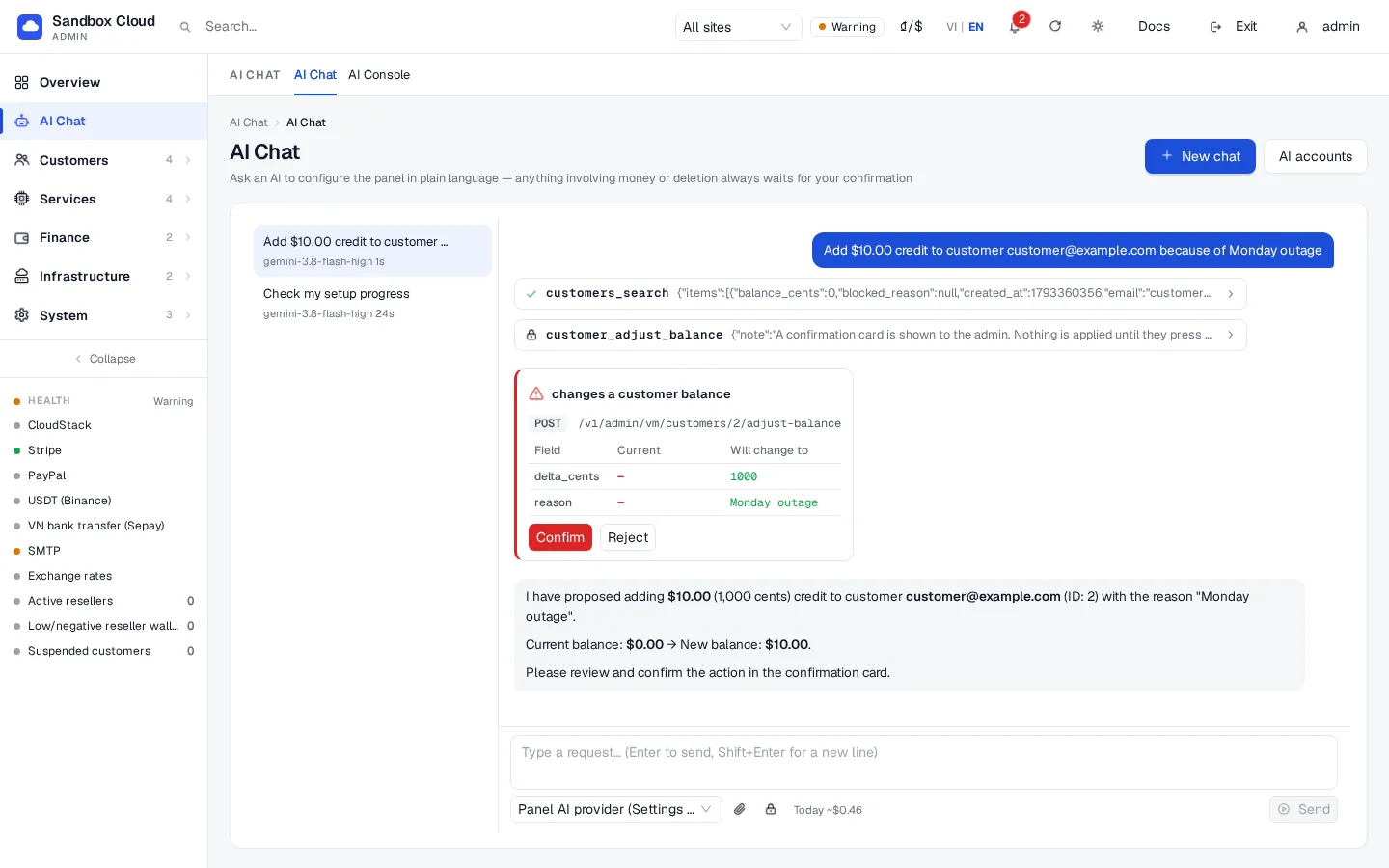
| Two-step confirmation | Actions that move money, delete data, change payment credentials or change sign-in security return a preview first and do nothing until you approve. Inside AI Chat every change is a confirmation card you press yourself. |
| Things keys can never do | Create administrators, change 2FA, create or revoke keys, log in as a customer, back up, restore or update the panel, and similar. These need you in the admin. |
| Activity log | Every call, allowed or refused, is recorded with the key, the client, the tool, the IP and the result. See System › Settings › API & AI agents › Activity. |
| Secrets are never returned | Passwords, API keys and tokens can be set but never read back. The answers the AI sees show them masked. |
| Demo installations are read-only | On a demo panel every write is refused with demo_read_only. |
::: important What the AI can read With admin:read an assistant can read customer names, e-mail addresses, balances and billing records. When you use an AI source that runs at a vendor (OpenAI, Anthropic, Google, OpenRouter) that data is sent to that vendor to answer your question. Give an assistant the smallest set of scopes it needs, and choose a source you trust with that data. :::
Quick start
- Sign in to the admin and open AI Chat. If no AI source is connected yet, open System › Settings › AI accounts and connect one (see AI accounts and subscriptions).
- Type "Check my setup progress" and press Enter. The assistant reads the Setup progress checklist and tells you what is left.
- Ask it to do the next step. Review each confirmation card and press Confirm to apply it.
For a first look at what to ask, see Example prompts.
Limits & notes
- Demo and read-only. The pages are visible on a demo panel, but nothing can be saved there.
- No shell. The assistant can only call the admin tools listed in Connect an AI client. It cannot run commands on the server.
- Network and routing modules (BGP, XDP, interfaces, NAT and similar) are read-only for AI, and sensitive areas such as administrator accounts, backups and updates are closed to keys entirely.
- Prices are in USD: plan prices in dollars per hour, balances in cents.
- Cost. AI answers are paid to the AI source you connect (API usage, or your own subscription). In AI Chat you can set a daily spending cap. For the NexCMP license model see https://nexcmp.com/pricing.
Troubleshooting
| Symptom | Cause | Fix |
|---|---|---|
| AI Chat says no AI source is connected | No source set up for your admin account | Open System › Settings › AI accounts and connect one. |
An assistant answers insufficient_scope | The key or connection lacks the scope for that tool | Create a key with the needed scope, or reconnect and tick it on the consent screen. See Admin API keys. |
| Every change shows a confirmation card | Expected in AI Chat | Press Confirm to apply or Reject to cancel. |
Writes fail with demo_read_only | The panel is in demo mode | Use a non-demo installation. |