Console
Where in the portal: a VM's page → Console tab. Where in the admin: System › Admin › License & updates → modules (web SSH).
What it does
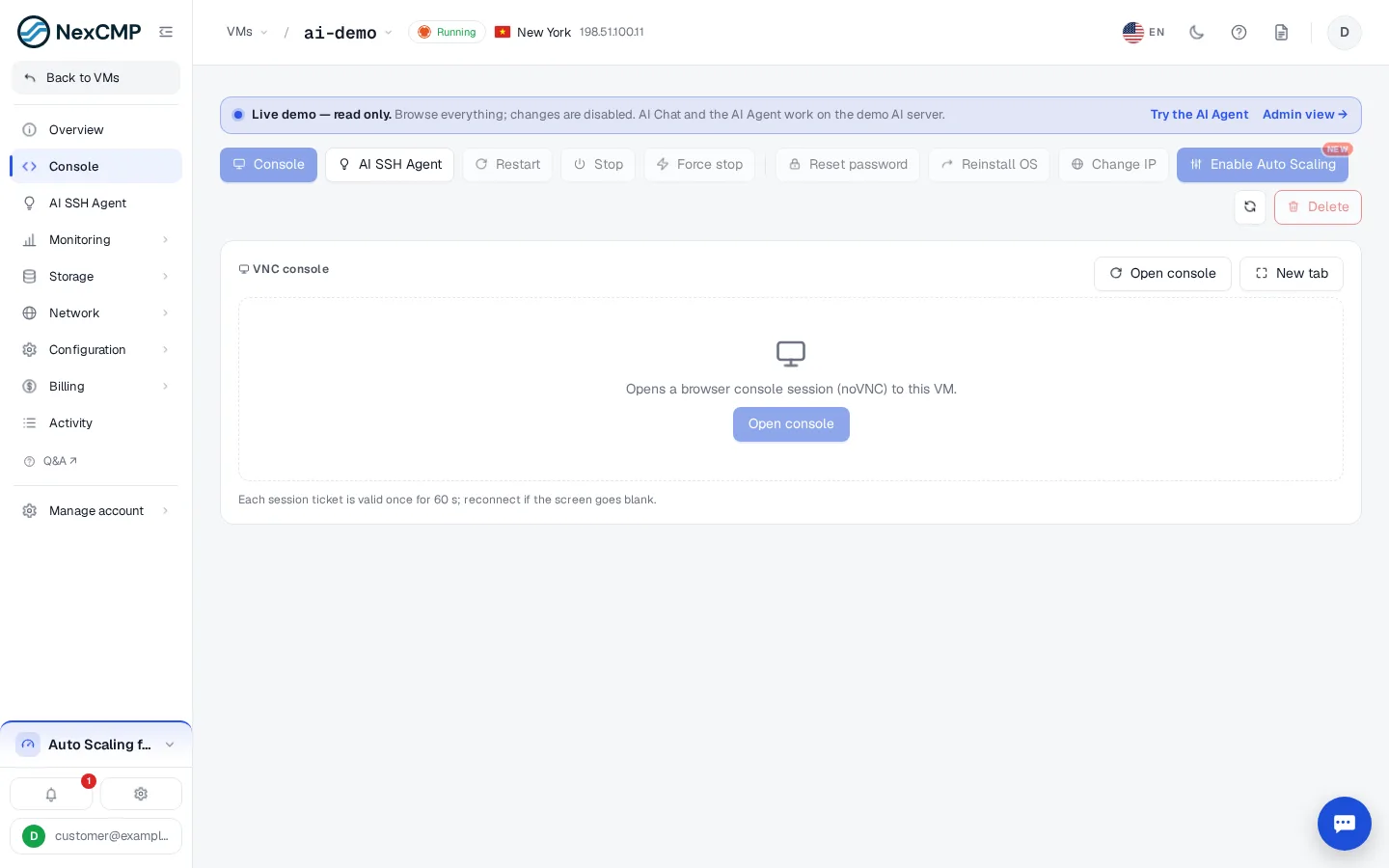
The Console tab opens a graphical (VNC) session to the VM in the browser, even when the network inside the VM is broken. A web SSH terminal is available as a second option when the SSH module is enabled.
Requirements
| Item | VNC console | Web SSH |
|---|---|---|
| CloudStack | Console proxy VM (CPVM) reachable by the panel — see CloudStack | A reachable SSH port on the VM |
| Proxmox VE | Works through the panel (noVNC over the Proxmox API; the TLS fingerprint is pinned) — see Proxmox VE | Same |
| Panel | Console URL set in General settings | The ssh-proxy service and module flag feature_ssh_web; off by default — see Modules |
If the web SSH module is off the tab shows VNC only.
Use it
- Open the VM → Console.
- Click Console (or Open in new window). A short-lived ticket is issued and the console opens at
https://<domain>/console. - Log in with the VM's user name and password (visible on the Overview tab; reset it if lost).
Troubleshooting
| Symptom | Cause | Fix |
|---|---|---|
| "Disconnected" immediately | Browser kept an old console path | Clear site data for the domain and retry |
| Black screen | VM is stopped or booting | Start the VM and wait |
| Console does not open on CloudStack | Console proxy VM not running or not reachable | Check the system VMs in CloudStack |
| No SSH option | Web SSH module off | Enable it only after ssh-proxy is installed |