claude.ai and ChatGPT connectors
Where in the admin: System › Settings › API & AI agents (
/agent/keys), tab Connected apps. The consent screen opens at/agent/consentwhen a connector asks for access (it is not in the menu).
What it does
Web AI apps cannot read a key from your disk. They connect with OAuth: you add the panel's MCP URL, the app sends you to your own admin to sign in, you choose what the app may do and for how long, and the app receives short-lived tokens. No key is copied or pasted. You can cut the app off at any time.
Use this for claude.ai custom connectors, ChatGPT developer-mode connectors and any other MCP client that supports OAuth with dynamic client registration. Command-line tools can use the same flow, but an admin API key is simpler for them.
Requirements
| Item | Requirement |
|---|---|
| URL | https://cloud.example.com/mcp/admin, reachable from the internet (the vendor's servers connect to it). |
| Reverse proxy | If you put your own proxy in front of the panel, it must forward /mcp/admin, /oauth-admin/ and the /.well-known/ paths to the panel. |
| You | Signed in to the NexCMP admin in the same browser you use for the consent screen. |
| Client | Supports MCP over Streamable HTTP, OAuth 2.1 with PKCE (S256) and dynamic client registration. |
Connect
- In the AI app, add a custom MCP connector and paste
https://cloud.example.com/mcp/admin. In claude.ai this is under the connectors settings (add custom connector); in ChatGPT it is under developer mode (add an MCP connector, authentication OAuth). - Choose Sign in (or "Connect") in the app. Your browser opens the NexCMP admin consent screen. If you are not signed in, sign in first; the screen continues afterwards.
- Read the card: "Example AI app wants to manage this NexCMP admin" (the name of the app that is asking), with the address you will be sent back to.
- Tick the scopes to grant. The ones the app asked for are pre-ticked; if it asked for none, only
admin:readis ticked. See Scopes. - Choose how long the connection lasts: 7, 30 or 90 days (default 30).
- Click Allow. The browser returns to the app, which is now connected. Click Deny to refuse.
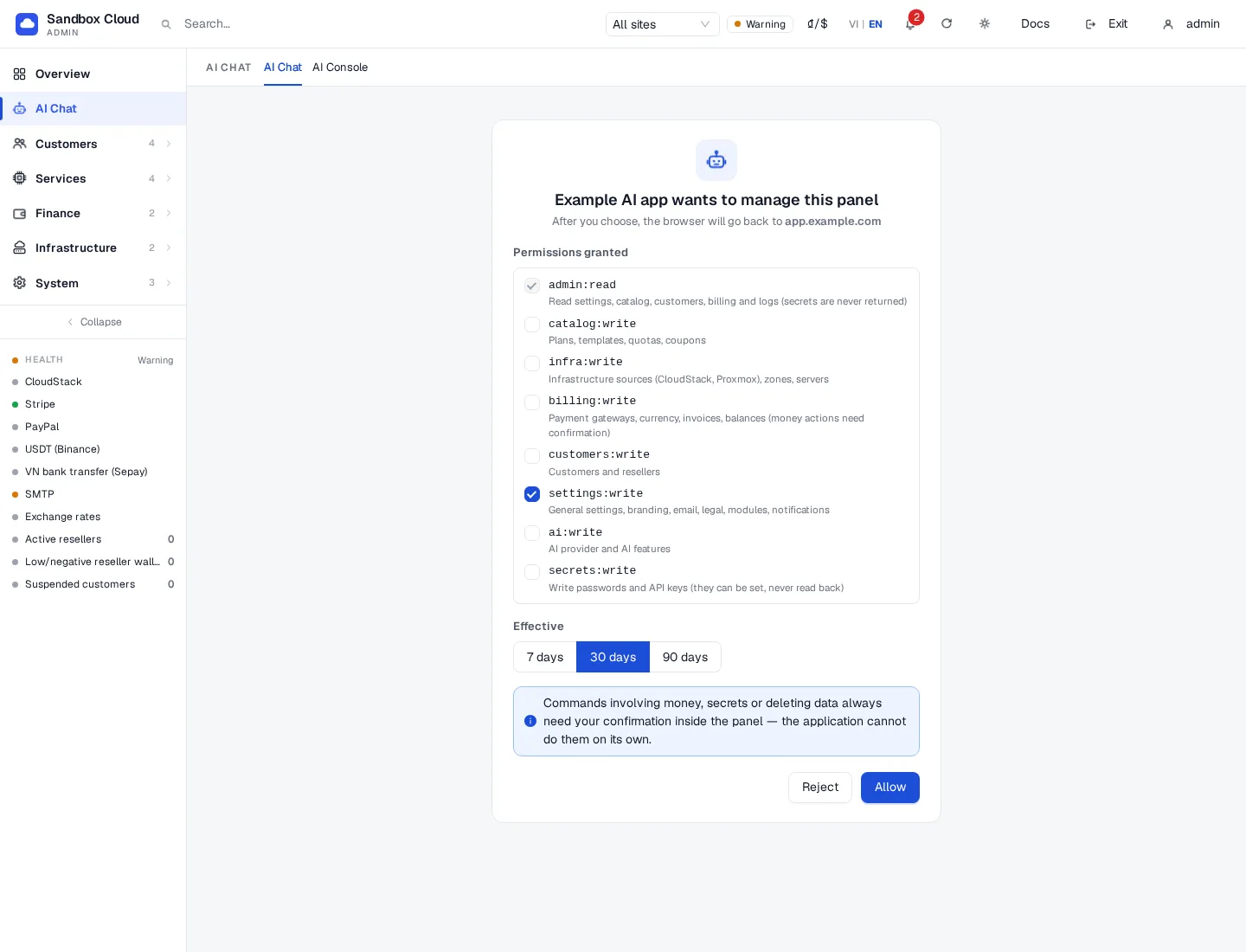
::: important Choose scopes like you would for a key Grant the smallest set that does the job. Money, delete and security actions still stop at a preview and need your approval, but a connection with settings:write can still change your branding and email. :::
Manage and revoke
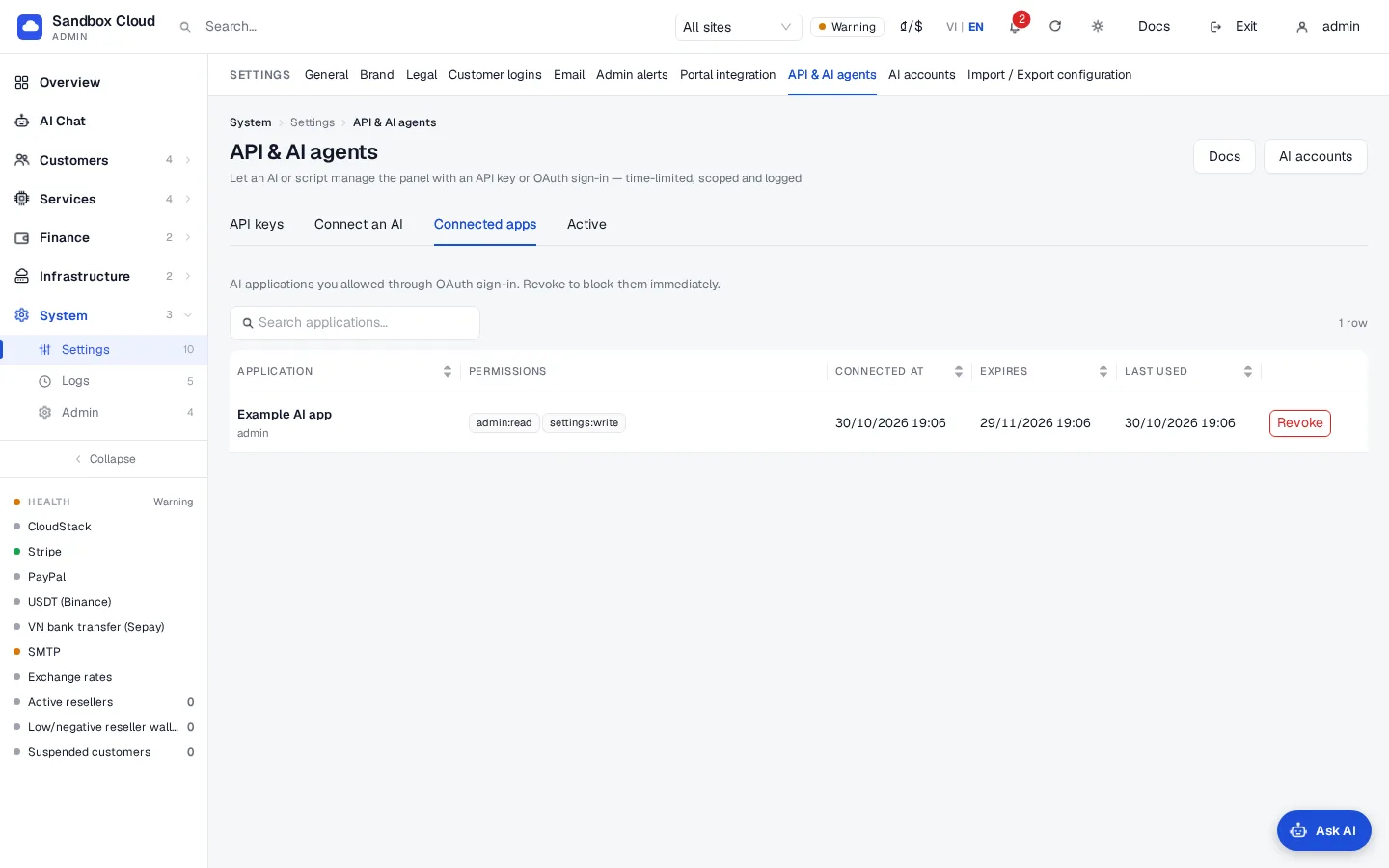
Open System › Settings › API & AI agents › Connected apps. The table lists every app you connected: application, scopes, when it connected, when it expires and when it was last used.
To cut an app off, click Revoke and confirm. Its tokens stop working immediately; the app has to go through the consent screen again to reconnect.
How the flow works
| Step | Detail |
|---|---|
| Discovery | The app reads /.well-known/oauth-protected-resource/mcp/admin and then /.well-known/oauth-authorization-server/oauth-admin. The issuer is https://cloud.example.com/oauth-admin. |
| Registration | The app registers itself (POST /oauth-admin/register, RFC 7591). Only public clients are supported (no client secret). The redirect address must be https, or http on the same computer (loopback). |
| Authorization | GET /oauth-admin/authorize with PKCE method S256. A resource parameter, when sent, must be this panel's /mcp/admin URL. The request is valid for 10 minutes and is tied to the browser that started it. |
| Consent | You choose scopes and duration (above). The authorization code is valid 60 seconds and works once. |
| Tokens | POST /oauth-admin/token returns an access token (an ak_o... key, valid 1 hour or until the connection ends, whichever is sooner) and a refresh token (akr_...). Every refresh returns a new refresh token; the old one stops working. The connection ends after the days you chose. |
| Revocation | Revoke in Connected apps, or the app calls POST /oauth-admin/revoke (RFC 7009). |
The access token behaves like an admin key with the scopes you granted: same scope rules, confirmation, rate limit and activity log. Its calls show up on the Activity tab.
Verify
- In the app, ask "run system_health" (or "what tools do you have?"). The app lists the tools your scopes allow (the tool list).
- Open Connected apps: Last used moves.
- Open Activity: the calls are listed with the app's name and
mcp.
Limits & notes
- If the app asks again to sign in after an hour, that is normal when a client does not refresh; reconnect.
- A refresh token that is used twice is treated as stolen: the whole connection is revoked. Reconnect from the app.
- An authorization code used twice is rejected (
invalid_grant) and the tokens already issued from it are revoked. - OAuth access never gives more than the scope rules allow: what a key can never do applies to connected apps too.
- Vendors change their menus and what they support. If a vendor's app does not offer custom connectors on your plan, use an admin API key with a desktop or command-line client instead.
Troubleshooting
| Symptom | Cause | Fix |
|---|---|---|
| Consent screen says "Wrong browser" | The request was started in another browser than the one you are signed in to | Start the connection again from the AI app in the same browser. |
| Consent screen says the request expired or is missing | More than 10 minutes passed, or the link was opened twice | Start the connection again from the AI app. |
| "Unknown client" or "redirect address does not match" page | The app registration is stale, or it uses a redirect address it did not register | Remove the connector in the app and add it again. |
invalid_target | The resource sent is not this panel's /mcp/admin URL | Use the exact URL shown on the Connect an AI tab. |
invalid_request about PKCE | The client does not send code_challenge_method=S256 | Use a client that supports OAuth 2.1 with PKCE. |
The app connects but a call returns insufficient_scope | You did not tick that scope | Revoke the connection and connect again with the scope ticked. |
| The app cannot reach the URL | DNS, TLS or the reverse proxy blocks /mcp/admin, /oauth-admin/ or /.well-known/ | Check the proxy rules. |