Guide
How to add an AI support chatbot and SSH agent to a CloudStack cloud
NexCMP is a self-hosted billing and customer portal for Apache CloudStack and Proxmox VE, and version 1.2.0 ships two AI modules: AI Chat, an assistant inside the customer portal, and AI Agent, which carries out tasks on a customer's own VM over SSH. This guide sets both up with an OpenAI-compatible API key, using screenshots from the customer portal and the admin console.
Time needed: about 15 minutes on an existing NexCMP install.


The stack
Four pieces, three of which you probably run already.
NexCMP 1.2.0
The panel your customers already use, installed on Ubuntu 22.04 or 24.04. AI Chat and AI Agent are part of the license — no add-on fee.
An OpenAI-compatible endpoint
Any chat-completions API that supports tool (function) calling: a hosted provider, or a proxy you run in front of several providers.
A key with a spending cap
Give the panel its own key and set a monthly budget on it at the provider or in your proxy, so usage can never run away.
Your CloudStack VMs
AI Agent reaches a customer's VM over SSH from the panel server, with the login the customer saved for that VM.
Step by step
Update the panel to 1.2.0
In the admin console open License and press Update, or run sudo nexcmp update on the server. The update is signed and checked before it installs.
Create a capped API key
At your AI provider (or in your proxy) create a key just for this panel and give it a monthly budget. A fast, low-cost model is enough for support chat.
Enter it in Admin › Settings › AI provider
Paste the endpoint URL, the key and the model name, then press Test connection. The key is stored encrypted in the panel's database and is never shown again.
Switch on the AI module
In License › Modules turn on AI. AI Chat and AI Agent appear in the customer portal menu after the page reloads; turning the module off hides them again.
Customers ask AI Chat
AI Chat answers questions about your plans and prices and about the customer's own services. When a question needs a person, the customer can hand the conversation over to your support team.
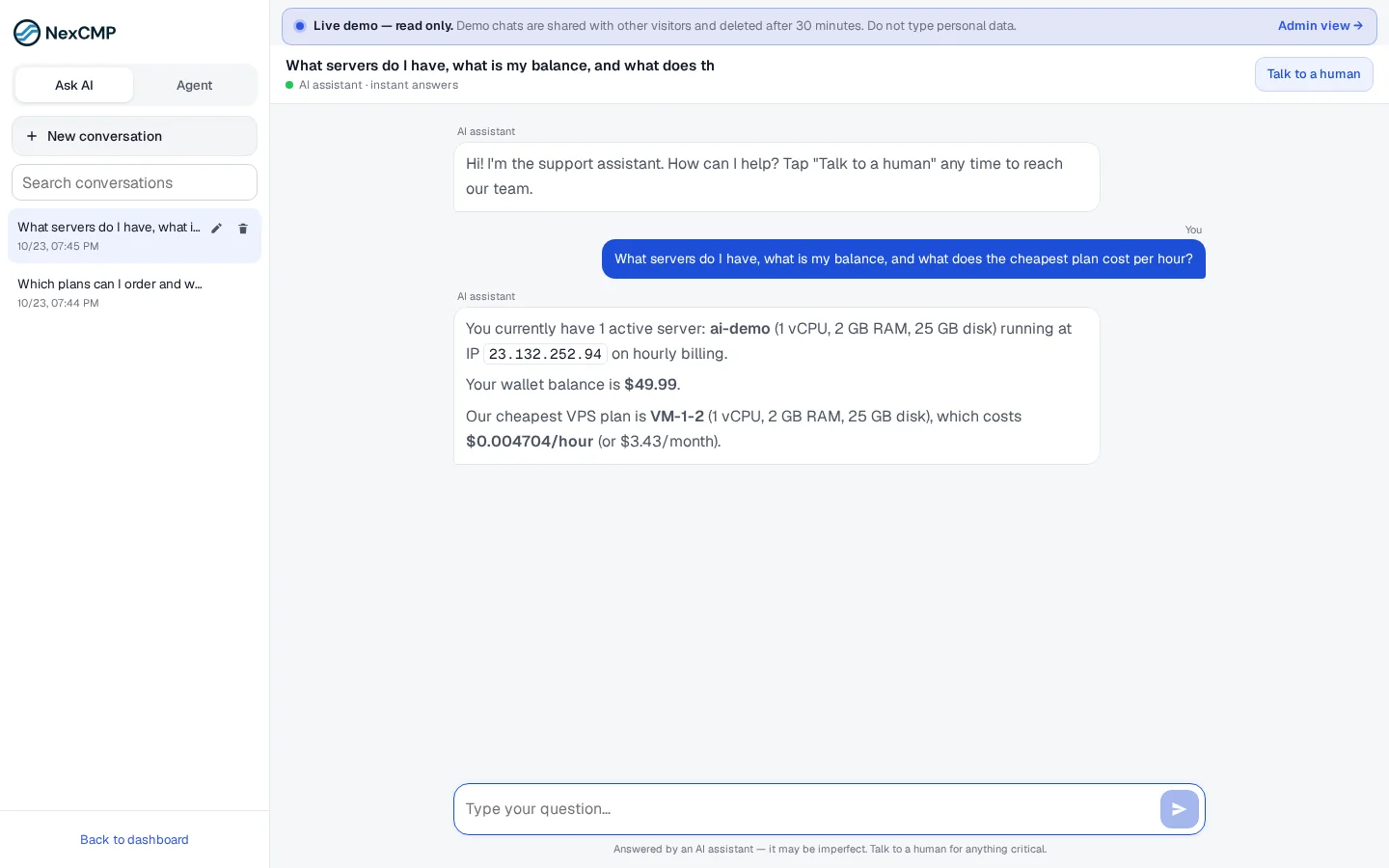
Customers run AI Agent on a VM
The customer picks one of their own VMs and describes the task in plain language. The agent runs the commands over SSH and shows every command with its output.
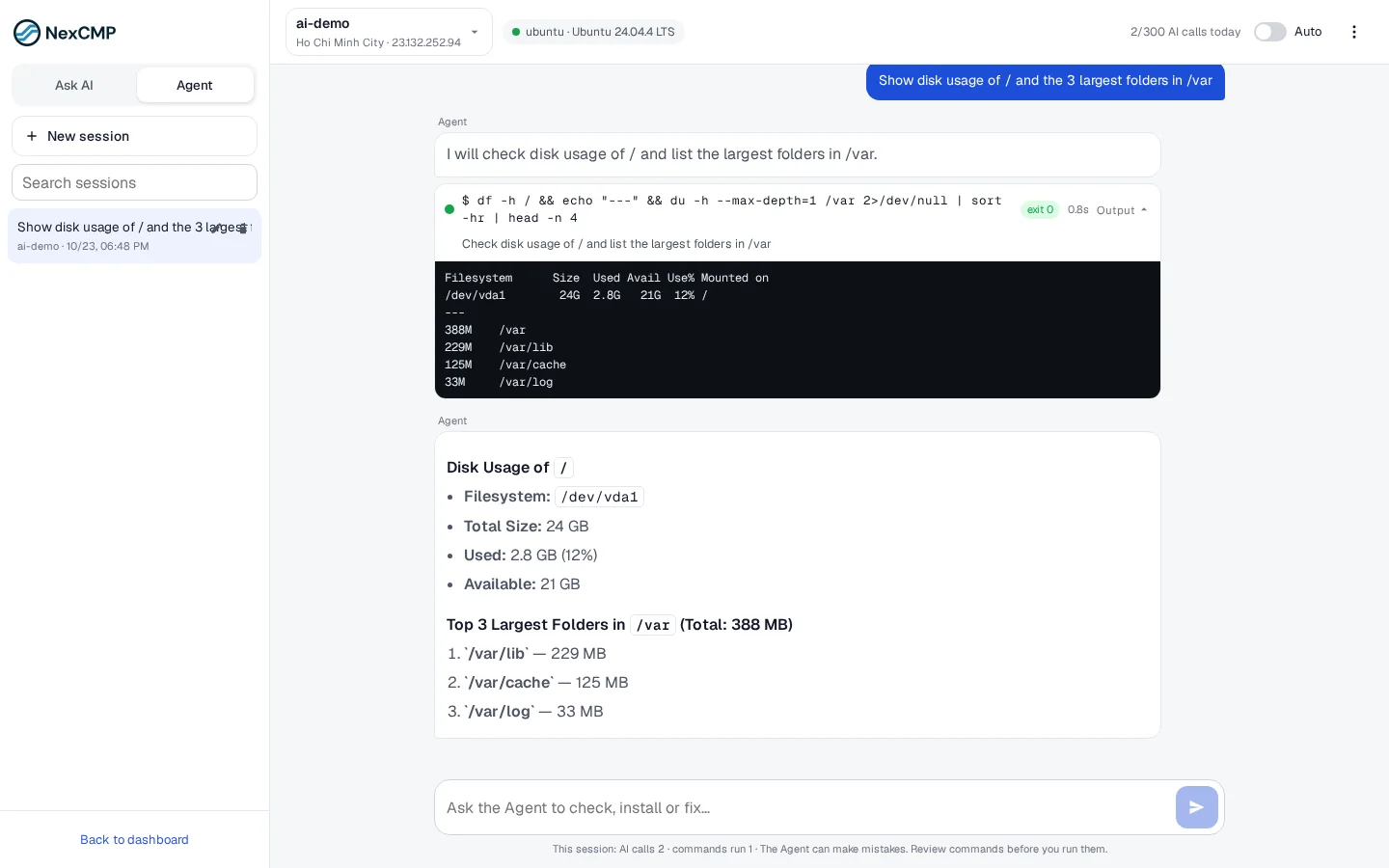
Keep an eye on usage
Usage is billed by your AI provider, not by NexCMP. Check spend on the provider's or proxy's dashboard and adjust the key's budget as your customers adopt the feature.
What you need before you start
- NexCMP 1.2.0 or later, with the AI module in License › Modules.
- An AI provider with an OpenAI-compatible chat/completions endpoint and a model that supports tool (function) calling: OpenAI, OpenRouter, a LiteLLM gateway or your own vLLM server all qualify.
- For AI Agent, openssh-client on the panel server (the installer adds it) and a network route from the panel server to each VM's SSH port, 22 by default.
- For AI Agent, a Linux VM that belongs to the customer, is running and is not locked, with a stored login (saved when the VM was created or its password was reset) or the panel's operations key. Windows VMs are refused.
- Optional for AI Chat staff hand-off: a Telegram bot and chat ID under Settings › Admin alerts.
ssh -V
nc -vz 198.51.100.10 22Test the endpoint from the panel server first
NexCMP adds /chat/completions to a URL that ends in /v1, and /v1/chat/completions to any other URL; a URL that already ends in /chat/completions is used as it is. Before you enter the endpoint, send it one request from the NexCMP server. A JSON answer with choices[0].message.content means the endpoint and the model work.
curl -s https://ai.example.com/v1/chat/completions \
  -H "Authorization: Bearer XXXX" -H "Content-Type: application/json" \
  -d '{"model":"gpt-4o-mini","messages":[{"role":"user","content":"Reply with one word: OK"}]}'
How AI Agent runs commands, and what it will not run on its own
- Commands run from the panel server with its own ssh client, one non-interactive command at a time. The target is always the VM's IP address from the database, never one taken from the request.
- The stored password is passed through a one-shot SSH_ASKPASS helper in the process environment: it is not written to disk or put on the command line.
- Each command's output is limited to 200 KB, a turn ends after at most 10 steps, and a customer can have at most 2 agent runs going at once.
- In Confirm mode every command waits for the customer to press Run. In Auto mode only commands on a strict read-only list, for example df -h, ps or journalctl, run by themselves.
- Commands that overwrite or delete files, change accounts or SSH keys, send data to an outside server, download and run a script, or shut down or restart the machine always show Needs confirmation, even in Auto mode.
- Command output is shown to the model as untrusted data, and instructions found inside it are not followed.
Troubleshooting
The messages you are most likely to meet, and what to check.
Test connection fails with 401
- Likely cause
- The key is wrong for that endpoint.
- What to do
- Check the key and the endpoint, and retype the key if you changed the base URL.
Test connection fails with 404 or model not found
- Likely cause
- Wrong path or model id.
- What to do
- Check that the base URL ends in /v1 and use the provider's exact model id.
The portal shows no AI menu
- Likely cause
- The module is off, or the provider is not switched on as in use.
- What to do
- Turn the AI module on in License › Modules and enable the provider.
The Agent could not log in
- Likely cause
- No stored password and no operations key for that VM.
- What to do
- Reset the VM password in the portal so it is saved again.
The server did not answer in time
- Likely cause
- A firewall, SSH not listening, or a busy VM.
- What to do
- Run nc -vz <vm-ip> 22 from the panel server and start sshd in the VM.
The AI is responding too slowly
- Likely cause
- The provider or model is slow.
- What to do
- Use a faster model or a lower Reasoning effort in Settings › AI provider.
Sign in to use AI Chat
- Likely cause
- The visitor is not signed in.
- What to do
- Expected: AI Chat is for signed-in customers only.
Privacy and cost
Customer questions, and the data the AI reads for that customer (read-only), are sent to your AI provider. Say so in your privacy policy.
NexCMP does not meter AI cost. Use your provider's budget features, and lower the AI turns per day per customer setting (40 by default, under Customers › Support › Ticket › AI settings) to cap spending.
Where to go next
AI Chat and AI Agent stay off until you save a provider key, so nothing is billed to you or sent anywhere before you decide. Read the overview, or tour the other modules.
Questions about the AI modules
Which AI models work?
Can the agent reach other customers' servers?
Does NexCMP charge for AI?
How do I test the AI provider connection?
Does AI Agent need a separate SSH gateway?
Can visitors who are not signed in use AI Chat?
Does AI Agent work on Windows VMs?
Can I switch it off?
References
Specifications mentioned in this guide.
Add AI to your cloud
AI Chat and AI Agent are in every NexCMP license — free for the first year, or $499 one-time with the source code.
Last updated: