Virtual machines
Where in the portal: Instances (
/vms) and a VM's page (/vms/<id>).
Instances lists a customer's VMs with name, OS, status, IP, specs and cost. Click one to open its page.
The VM page
Tabs: Overview, Console, AI SSH Agent (when the AI module is on), Monitoring, Storage, Network, Configuration, Billing, Activity.
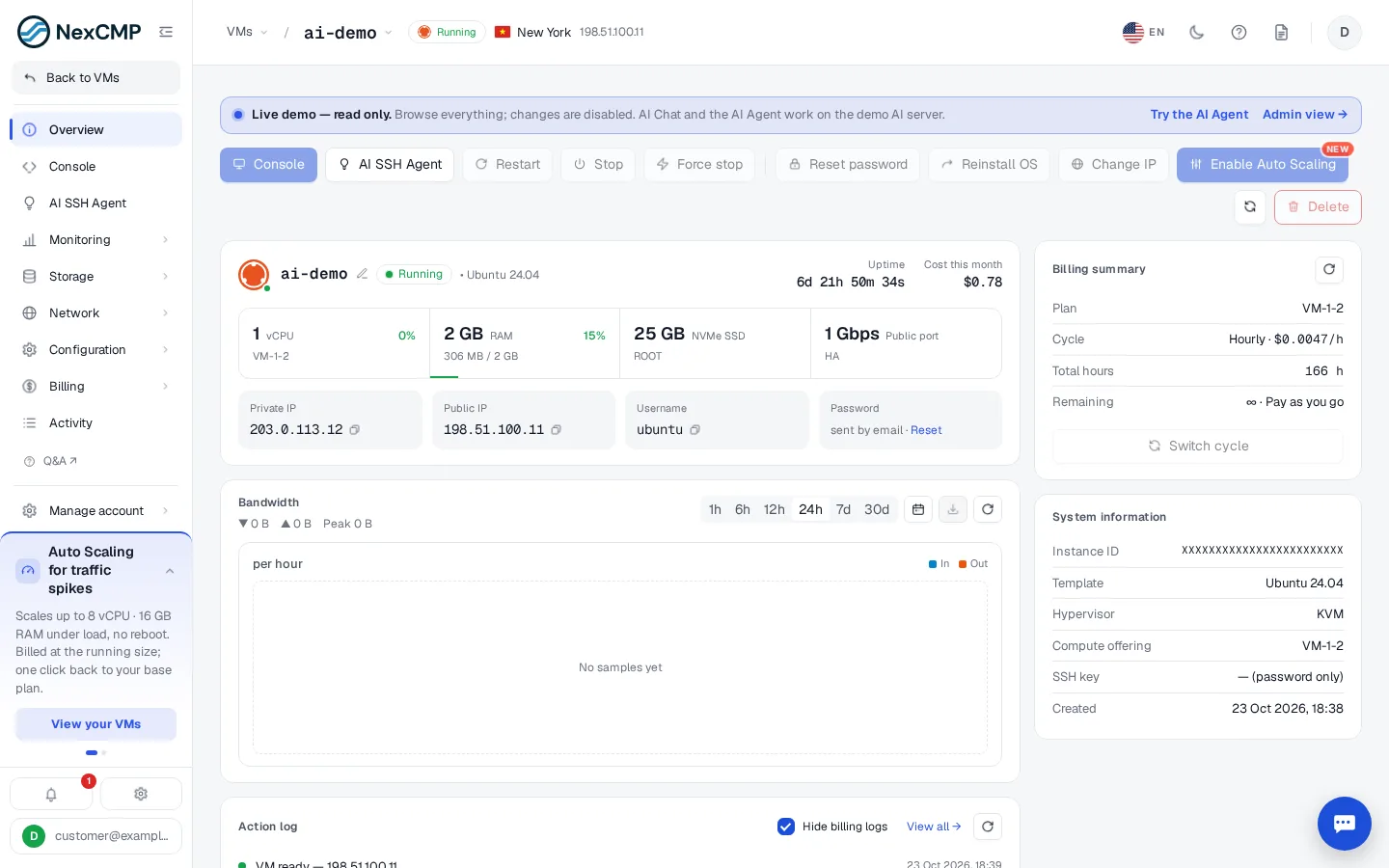
Actions
| Action | Effect |
|---|---|
| Console | Opens the browser console — Console |
| Restart / Stop / Force stop | Power control |
| Reset password | Generates a new password, shown once |
| Reinstall OS | Rebuilds from a template; data is lost |
| Change IP | Replaces the public IP (where the source supports it) |
| Enable Auto Scaling | Scales CPU/RAM under load when enabled |
| Delete | Destroys the VM; hourly billing stops |
Information shown
Uptime, cost this month, vCPU/RAM/disk with live use, public and private IP, user name, bandwidth chart, the action log, and a billing summary (plan, cycle, hours, remaining).
Fields depend on the source
A VM page shows only what its source supports. For example, a Proxmox VE VM has no port forwarding or change-IP, and its OS list follows the template set of its cluster. See the capability table in Proxmox VE.
Billing tab
Shows plan, cycle, total hours, remaining time and the billing log. Hourly VMs accrue until deleted. A customer can switch cycle to prepay a longer period at a discount.
For administrators
The same VM is visible under Services › Virtual Machines in the admin console, where you can act on behalf of the customer or log in as them.